> For the complete documentation index, see [llms.txt](https://pwa.spomky-labs.com/llms.txt). Markdown versions of documentation pages are available by appending `.md` to page URLs; this page is available as [Markdown](https://pwa.spomky-labs.com/1.4.x/favicons/create-favicons.md).
# Create Favicons
Favicons are the small icons that appear in browser tabs, bookmarks, and address bars. Providing favicons that look great across all devices, browsers, and operating systems is traditionally complex and time-consuming.
## Why Favicons Matter
**Brand Recognition:**
* Instant visual identification in crowded browser tabs
* Professional appearance in bookmark lists
* Consistent branding across all platforms
**User Experience:**
* Easier navigation when multiple tabs are open
* Quick identification in browser history
* Better mobile home screen appearance
**Platform Requirements:**
* Each browser and OS expects different sizes
* Multiple formats needed (ICO, PNG, SVG)
* Special icons for touch devices and pinned tabs
{% hint style="info" %}
Favicons are separate from app icons declared in the Web App Manifest, though they serve similar purposes. The bundle automatically generates both from a single source image.
{% endhint %}
## Quick Setup
With this bundle, generating all necessary favicons takes just seconds. You only need one source file:
**Requirements:**
* Square icon (recommended)
* SVG format (preferred) or PNG (512x512px minimum)
* Transparent background (highly recommended)
**Basic configuration:**
{% code title="config/packages/pwa.yaml" lineNumbers="true" %}
```yaml
pwa:
favicons:
enabled: true
src: icons/favicon.svg
```
{% endcode %}
**That's it!** The bundle automatically generates all required favicon sizes and formats for:
* Desktop browsers (16x16, 32x32, 48x48)
* Touch devices (180x180 for Apple, 192x192 for Android)
* Windows tiles (70x70 to 310x310)
* Safari pinned tabs
* And more...
## Icon Source Options
The bundle supports three types of icon sources, giving you flexibility in how you provide your favicon:
### 1. Asset Mapper Asset (Recommended)
Reference icons managed by Symfony's Asset Mapper:
```yaml
pwa:
favicons:
src: icons/favicon.svg # Relative path within assets/
```
**Advantages:**
* Version control friendly
* Automatic cache busting
* Works with build pipeline
### 2. Absolute File Path
Use an existing file from your project directory:
```yaml
pwa:
favicons:
src: /app/files/favicon.svg # Absolute path (starts with /)
```
**Use cases:**
* Files outside the assets directory
* Dynamic file locations
* Legacy icon files
### 3. Symfony UX Icons
Use any icon from the [Symfony UX Icons](https://ux.symfony.com/icons) library:
```yaml
pwa:
favicons:
src: bx:cool # Format: iconset:icon-name
```
**Advantages:**
* No file needed
* Access to thousands of icons
* Consistent icon library
**Popular icon sets:**
* `heroicons:` - Heroicons
* `fa:` - Font Awesome
* `bx:` - BoxIcons
* `lucide:` - Lucide Icons
## Customization Options
### SVG Attributes
You can customize any SVG attribute directly to control how your icon is rendered. The bundle allows you to modify fill colors, stroke properties, and any other SVG root attributes:
{% code title="config/packages/pwa.yaml" overflow="wrap" lineNumbers="true" %}
```yaml
pwa:
favicons:
enabled: true
src: icons/favicon.svg
default:
src: icons/favicon.svg
svg_attr:
fill: '#2196f3' # Set fill color
stroke: '#ffffff' # Set stroke color
stroke-width: '2' # Set stroke width
```
{% endcode %}
**Common SVG attributes you can modify:**
* `fill`: Main fill color of the icon
* `stroke`: Outline/border color
* `stroke-width`: Width of the stroke
* `opacity`: Overall transparency
* `color`: Used when SVG uses `currentColor`
**Legacy `svg_color` option:**
For backward compatibility, you can still use `svg_color` (which sets the `color` attribute):
```yaml
pwa:
favicons:
enabled: true
src: icons/favicon.svg
svg_color: '#15fe68' # Equivalent to svg_attr.color
```
{% hint style="info" %}
The `svg_color` option is a shorthand for `svg_attr.color`. Use `svg_attr` directly for more control over SVG rendering.
{% endhint %}
**Example use cases:**
* Set brand colors for monochrome SVG icons
* Add strokes to improve visibility on backgrounds
* Control opacity for watermark effects
* Modify multiple attributes simultaneously
### Icon Scaling and Safe Zone
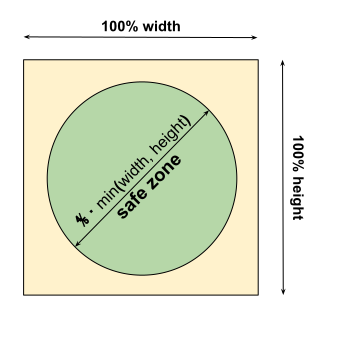
Different platforms apply masks to icons (circular, rounded square, etc.). To ensure your icon looks good on all platforms, use the safe zone feature.
**The problem:** Some platforms (especially Android) may crop icons to specific shapes:
Safe zone - keep important content within 80% of icon area
**The solution:** Scale down your icon to stay within the safe zone:
{% code title="config/packages/pwa.yaml" lineNumbers="true" %}
```yaml
pwa:
favicons:
enabled: true
src: assets/icon.svg
image_scale: 80 # = 80% of the original size
```
{% endcode %}
**Recommendations:**
* Use `image_scale: 80` (80%) for icons with text or detailed graphics
* Use `image_scale: 100` for simple, centered logos
* Test on different Android devices to verify appearance
{% hint style="success" %}
The bundle automatically adds transparent padding to maintain the original canvas size while scaling the icon content.
{% endhint %}
### Background Color and Rounded Corners
Create polished, platform-native looking icons by adding backgrounds and rounded corners:
{% code title="config/packages/pwa.yaml" lineNumbers="true" %}
```yaml
pwa:
favicons:
enabled: true
src: assets/icon.svg
background_color: "#ffffff" # Hex color for the icon background
border_radius: 10 # = 10% of the size. 50% is a circle.
```
{% endcode %}
**Parameters:**
* `background_color`: Hex color code (e.g., `#ffffff` for white)
* `border_radius`: Percentage of icon size (0-50)
* `0`: Square corners
* `10`: Slightly rounded (modern look)
* `25`: Very rounded
* `50`: Perfect circle
**Visual examples:**
* `border_radius: 0` → Square icon
* `border_radius: 10` → iOS-like rounded square
* `border_radius: 20` → Android Material style
* `border_radius: 50` → Circle
{% hint style="info" %}
The `border_radius` option only works when `background_color` is set. Without a background, corners remain transparent.
{% endhint %}
**Common combinations:**
```yaml
# iOS style
background_color: "#ffffff"
border_radius: 18
# Material Design
background_color: "#2196f3"
border_radius: 20
# Circular icon
background_color: "#000000"
border_radius: 50
```
### Dark Mode Icons
Support dark themes with dedicated dark mode icons. Modern devices automatically switch between light and dark icons based on system theme:
{% code title="config/packages/pwa.yaml" lineNumbers="true" %}
```yaml
pwa:
favicons:
enabled: true
# Light mode icon (shown in light theme)
default:
src: assets/icon.svg
background_color: '#ffffff'
# Dark mode icon (shown in dark theme)
dark:
src: assets/icon_dark.svg
background_color: '#000000'
```
{% endcode %}
**How it works:**
* `default`: Light theme icon (used when system is in light mode)
* `dark`: Dark theme icon (used when system is in dark mode)
* Browser automatically switches based on user's system theme preference
**Benefits:**
* Better user experience in dark mode
* Maintains brand visibility in all themes
* Professional, modern appearance
* Automatic theme switching
**Example scenarios:**
* Light background icon for light mode, dark background for dark mode
* Inverted color scheme for better contrast
* Different icon variants optimized for each theme
{% hint style="info" %}
When `dark` is defined, `default` becomes the light mode variant. Without `dark`, `default` is used for both themes.
{% endhint %}
## Platform-Specific Features
### Safari Pinned Tab Icon
Safari's pinned tabs use a special monochrome icon. Configure it with a single color:
{% code title="config/packages/pwa.yaml" lineNumbers="true" %}
```yaml
pwa:
favicons:
enabled: true
src: assets/icon.svg
safari_pinned_tab_color: "#f5ef06" # Safari only
use_silhouette: true
potrace: "/path/to/potrace" #Optional.
# Only if potrace is installed in a non-conventional folder
```
{% endcode %}
**Icon rendering:**
* By default, uses your icon as-is (with background/border-radius if configured)
* Set `use_silhouette: true` for a clean silhouette effect
**Silhouette mode:**
Generates a single-color silhouette of your icon, perfect for Safari's minimalist pinned tab design.
{% hint style="warning" %}
Silhouette mode requires [potrace](https://en.wikipedia.org/wiki/Potrace) to be installed on your system. Install it via your package manager (e.g., `apt install potrace` on Debian/Ubuntu).
{% endhint %}
**Custom potrace path:**
If potrace is installed in a non-standard location:
```yaml
pwa:
favicons:
potrace: "/usr/local/bin/potrace" # Custom path
```
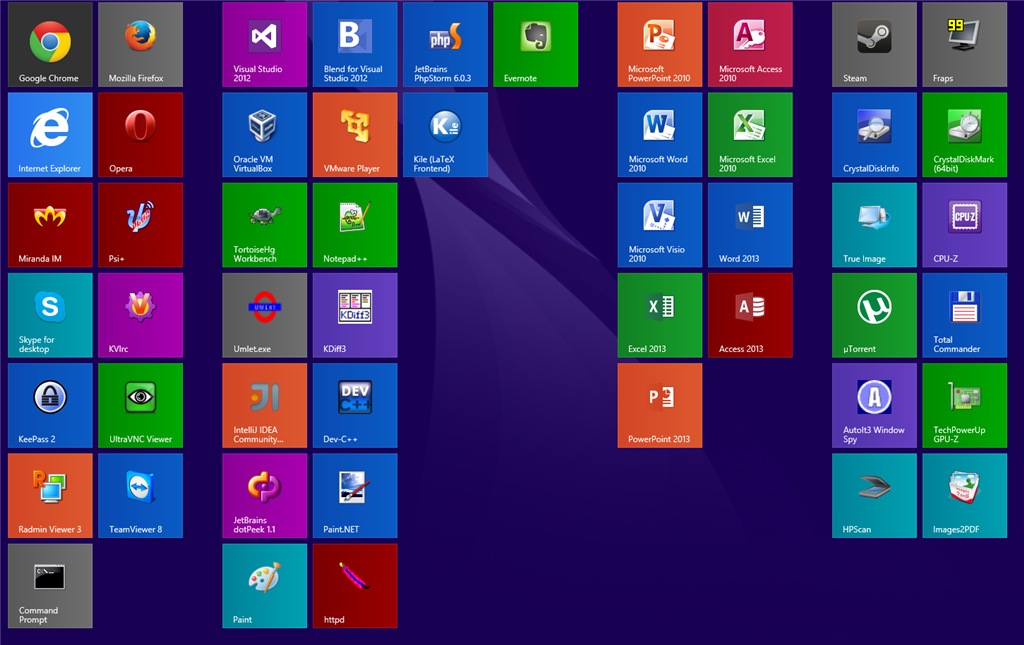
### Windows Tiles
Enable special tiles for Windows 8/10 Start Menu and taskbar:
{% code title="config/packages/pwa.yaml" lineNumbers="true" %}
```yaml
pwa:
favicons:
enabled: true
src: assets/icon.svg
tile_color: "#f5ef06" # Windows 8 to 10 only
```
{% endcode %}
Windows 8/10 tiles with custom tile color
**What gets generated:**
* Small tile (70x70)
* Medium tile (150x150)
* Wide tile (310x150)
* Large tile (310x310)
{% hint style="info" %}
Windows tiles ignore `background_color` and `border_radius` options. The tile color is applied as a flat background by Windows itself.
{% endhint %}
**Use cases:**
* Windows desktop applications
* Corporate environments using Windows
* Apps pinned to Windows Start Menu
## Legacy Browser Support
### Low Resolution Icons
By default, the bundle generates icons optimized for modern devices. Enable additional icon sizes for legacy browsers and older devices:
{% code title="config/packages/pwa.yaml" lineNumbers="true" %}
```yaml
pwa:
favicons:
enabled: true
src: assets/icon.svg
low_resolution: true
```
{% endcode %}
**Additional sizes generated:**
* 16x16 (very old browsers)
* 24x24 (Windows XP)
* 32x32 (standard favicon)
* 64x64 (high-DPI favicon)
* 96x96 (Google TV)
* 128x128 (Chrome Web Store)
**When to enable:**
* Supporting iOS 6 or older
* Chrome 20 or older browsers
* Legacy Android devices (pre-4.3)
* Enterprise environments with old hardware
{% hint style="warning" %}
Enabling `low_resolution` increases compilation time and generates more files. Only enable if you need legacy browser support.
{% endhint %}
## Complete Configuration Example
Here's a comprehensive configuration showing both modern and legacy formats:
### Modern Configuration (Recommended)
{% code title="config/packages/pwa.yaml" lineNumbers="true" %}
```yaml
pwa:
favicons:
enabled: true
# Light mode theme
default:
src: assets/icon.svg
background_color: '#ffffff'
border_radius: 18
image_scale: 80
svg_attr:
fill: '#2196f3'
stroke: '#ffffff'
# Dark mode theme
dark:
src: assets/icon_dark.svg
background_color: '#000000'
border_radius: 18
image_scale: 80
svg_attr:
fill: '#ffffff'
stroke: '#2196f3'
# Platform-specific
safari_pinned_tab_color: '#2196f3'
use_silhouette: true
tile_color: '#2196f3'
# Additional options
use_start_image: true
low_resolution: false
potrace: 'potrace' # Path to potrace binary
```
{% endcode %}
### Legacy Configuration (Still Supported)
For backward compatibility, the legacy format still works:
{% code title="config/packages/pwa.yaml" lineNumbers="true" %}
```yaml
pwa:
favicons:
enabled: true
# Source (will be converted to default.src)
src: assets/icon.svg
svg_color: '#2196f3' # Converted to default.svg_attr.color
background_color: '#ffffff'
# Styling
border_radius: 18
image_scale: 80
# Dark mode
src_dark: assets/icon_dark.svg
background_color_dark: '#000000'
# Platform-specific
safari_pinned_tab_color: '#2196f3'
use_silhouette: true
tile_color: '#2196f3'
```
{% endcode %}
{% hint style="warning" %}
**Deprecated:** The legacy format is deprecated and will be removed in version 2.x.
Deprecated options:
* `src` → use `default.src`
* `svg_color` → use `default.svg_attr.color` or `svg_attr`
* `background_color` → use `default.background_color`
* `src_dark` → use `dark.src`
* `background_color_dark` → use `dark.background_color`
* `border_radius` → use `default.border_radius` and/or `dark.border_radius`
* `image_scale` → use `default.image_scale` and/or `dark.image_scale`
Migrate to the `default` and `dark` structure for full control and future compatibility.
{% endhint %}
## Best Practices
1. **Use SVG when possible**: Scales perfectly to all sizes without quality loss
2. **Transparent backgrounds**: Works on any platform background color
3. **Simple designs**: Complex details may not be visible at small sizes (16x16)
4. **Test safe zone**: Ensure important elements stay within 80% of icon area
5. **Dark mode support**: Provide dark icons for better user experience
6. **Skip legacy support**: Unless you have specific requirements, modern icons are sufficient
## Troubleshooting
### Icons not appearing
**Check:**
1. Icon file exists at specified path
2. File format is supported (SVG, PNG)
3. Compilation ran successfully (`pwa:compile`)
4. HTML includes `{{ pwa() }}` function
### Icon quality issues
**Solutions:**
* Use SVG instead of PNG for better scaling
* Ensure PNG is at least 512x512 pixels
* Use `image_scale` to add safe zone padding
* Test on actual devices
### Silhouette not generating
**Requirements:**
* `potrace` must be installed
* Icon must have clear shapes (not gradients)
* Use `potrace` parameter if in custom location
### Dark icons not switching
**Verify:**
* Device/browser supports dark mode
* Both `default` and `dark` sections are configured
* Icons have been recompiled
* System theme is actually changing (test in browser DevTools)
## What Gets Generated
When you compile favicons, the bundle creates:
**Standard favicons:**
* `favicon.ico` (multi-size ICO file)
* `favicon.svg` (for modern browsers)
* `apple-touch-icon.png` (180x180 for iOS)
* `icon-192.png`, `icon-512.png` (for Android)
**HTML tags injected by `{{ pwa() }}`:**
```html
```
All files are automatically optimized and cached for production.
---
# Agent Instructions
This documentation is published with GitBook. GitBook is the documentation platform designed so that both humans and AI agents can read, navigate, and reason over technical content effectively. Learn more at gitbook.com.
## Querying This Documentation
If you need additional information that is not directly available in this page, you can query the documentation by asking a question.
Perform an HTTP GET request on the following URL with the `ask` and `goal` query parameters:
```
GET https://pwa.spomky-labs.com/1.4.x/favicons/create-favicons.md?ask=&goal=
```
`ask` is the immediate question: it should be specific, self-contained, and written in natural language.
`goal` is what the user is ultimately trying to achieve, the reason they need the answer. Sharing it helps GitBook give you a better, more relevant answer. A goal is most helpful when it describes the outcome the user wants rather than restating the question. For example, with `ask=how do I create an API token`, a goal like `automate deployments from our CI pipeline` lets GitBook tailor the answer to that use case.
The response will contain a direct answer to the question and relevant excerpts and sources from the documentation.
Use this mechanism when the answer is not explicitly present in the current page, you need clarification or additional context, or you want to retrieve related documentation sections.