> For the complete documentation index, see [llms.txt](https://pwa.spomky-labs.com/llms.txt). Markdown versions of documentation pages are available by appending `.md` to page URLs; this page is available as [Markdown](https://pwa.spomky-labs.com/1.4.x/how-to-install-remove-a-pwa.md).
# How To Install/Remove A PWA?
## Understanding PWA Installation
PWA installation is different from traditional app installation:
**What actually happens:**
* Your browser creates a **shortcut** with app metadata
* Resources are **cached** for offline use (not downloaded permanently)
* The app **opens in its own window** (without browser UI)
* No web server runs on your device
**What doesn't happen:**
* No executable files downloaded to your system
* No traditional installation process
* No storage of source code on your device
* No permanent local copy
Think of it as a **smart bookmark** that:
* Opens in a dedicated window
* Works offline through caching
* Integrates with your operating system
* Receives updates automatically
## Installation Requirements
For your PWA to be installable, the manifest must include:
* App name (`name` and/or `short_name`)
* At least one icon (192x192px minimum)
* Start URL (`start_url`)
* Display mode (`display`)
See the [Application Information page](/1.4.x/the-manifest/application-information.md) for complete requirements.
{% hint style="warning" %}
Installation criteria vary by browser and may change over time. Some browsers require HTTPS, user engagement, or additional manifest properties.
{% endhint %}
## Installing a PWA
### Chrome (Desktop & Android)
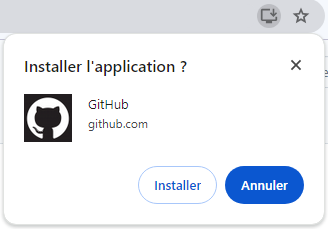
When you visit a PWA-enabled website, Chrome displays an install icon in the address bar (right side).
**Steps:**
1. Click the install icon (⊕ or computer monitor icon) in the address bar
2. Review the app information in the dialog
3. Click **Install** to confirm
The PWA will appear:
* As a shortcut on your desktop (desktop)
* In your app drawer (Android)
* In your Start menu/Applications folder
**Example:** Installing GitHub as a PWA:
GitHub installation from Chrome
### Microsoft Edge (Desktop & Android)
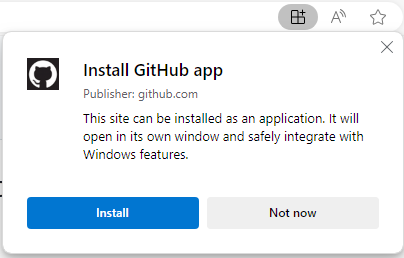
Edge provides the same installation experience as Chrome.
**Steps:**
1. Click the app icon in the address bar
2. Click **Install** in the popup dialog
3. The app opens in its own window
GitHub installation from Microsoft Edge
### Firefox (Desktop)
Firefox supports PWA installation with a slightly different approach.
**Steps:**
1. Click the three-line menu (☰) in the top right
2. Look for the option "Install \[App Name]" or the install icon
3. Confirm the installation
{% hint style="info" %}
Firefox PWA support varies by operating system. Linux has full support, while Windows and macOS support is more limited.
{% endhint %}
### Safari (iOS 16.4+)
On iPhone and iPad, Safari uses "Add to Home Screen" for PWA installation.
**Steps:**
1. Tap the **Share** button (square with arrow)
2. Scroll down and tap **Add to Home Screen**
3. Edit the name if desired
4. Tap **Add** in the top right
The PWA icon will appear on your home screen like a native app.
{% hint style="warning" %}
iOS PWAs have some limitations compared to Android. Some features like push notifications require iOS 16.4 or later.
{% endhint %}
## Uninstalling a PWA
### Chrome (Desktop)
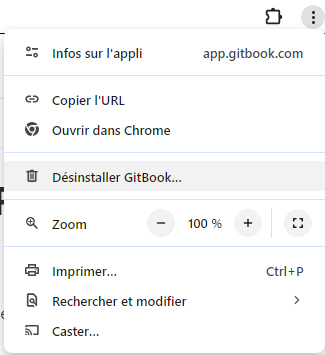
**Option 1: From the app window**
1. Open the installed PWA
2. Click the three vertical dots (⋮) in the top right
3. Select "Uninstall \[App Name]"
4. Confirm the uninstallation
Uninstalling from Chrome app menu
**Option 2: From Chrome settings**
1. Open Chrome
2. Go to `chrome://apps`
3. Right-click the PWA icon
4. Select "Remove from Chrome"
### Chrome (Android)
1. Long-press the PWA icon in your app drawer
2. Tap "Uninstall" or drag to "Uninstall" area
3. Confirm removal
### Microsoft Edge (Desktop)
**Method 1: Quick uninstall**
1. Open the installed PWA
2. Click the three horizontal dots (...) in the title bar
3. Select "Uninstall"
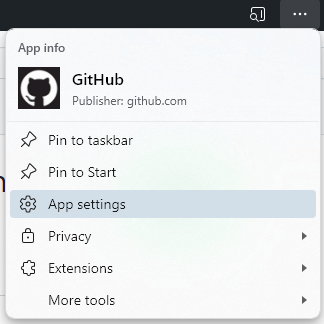
**Method 2: App settings**
1. Click the three dots (...) in the app
2. Select "App settings"
3. Click "Uninstall" in the app settings panel
Accessing Edge app settings
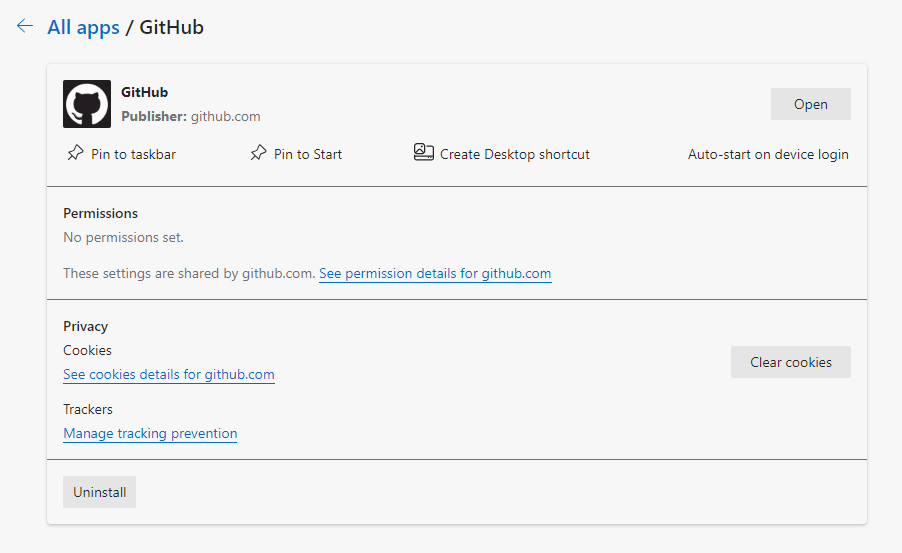
The app settings also let you clear cached data without uninstalling:
Edge app settings panel
### Firefox (Desktop)
1. Open the installed PWA
2. Click the Firefox menu (☰) in the top right
3. Select "Remove Site" or "Uninstall Site"
4. Confirm removal
### Safari (iOS)
1. Long-press the PWA icon on your home screen
2. Tap "Remove App" from the menu
3. Choose "Delete App" (not "Remove from Home Screen")
4. Confirm deletion
Alternatively:
* Go to Settings → General → iPhone Storage
* Find and select the PWA
* Tap "Delete App"
### Android (All Browsers)
1. Long-press the PWA icon in your app drawer or home screen
2. Drag to "Uninstall" or tap "App info" → "Uninstall"
3. Confirm removal
### Windows 10/11
PWAs appear as regular applications in Windows:
**Method 1: Start Menu**
1. Find the PWA in your Start menu
2. Right-click the app icon
3. Select "Uninstall"
**Method 2: Settings**
1. Press `Windows + X`
2. Select "Installed Apps" or "Apps and Features"
3. Find the PWA in the list
4. Click the three dots (⋯) next to the app
5. Select "Uninstall"
6. Confirm removal
Uninstalling PWA from Windows Settings
### macOS
1. Open Finder → Applications
2. Find the PWA (usually in a browser-specific folder)
3. Drag it to the Trash, or right-click → "Move to Trash"
4. Empty the Trash to complete removal
{% hint style="success" %}
Uninstalling a PWA removes the app shortcut and clears cached data, but you can always reinstall it by visiting the website again.
{% endhint %}
---
# Agent Instructions
This documentation is published with GitBook. GitBook is the documentation platform designed so that both humans and AI agents can read, navigate, and reason over technical content effectively. Learn more at gitbook.com.
## Querying This Documentation
If you need additional information that is not directly available in this page, you can query the documentation by asking a question.
Perform an HTTP GET request on the following URL with the `ask` and `goal` query parameters:
```
GET https://pwa.spomky-labs.com/1.4.x/how-to-install-remove-a-pwa.md?ask=&goal=
```
`ask` is the immediate question: it should be specific, self-contained, and written in natural language.
`goal` is what the user is ultimately trying to achieve, the reason they need the answer. Sharing it helps GitBook give you a better, more relevant answer. A goal is most helpful when it describes the outcome the user wants rather than restating the question. For example, with `ask=how do I create an API token`, a goal like `automate deployments from our CI pipeline` lets GitBook tailor the answer to that use case.
The response will contain a direct answer to the question and relevant excerpts and sources from the documentation.
Use this mechanism when the answer is not explicitly present in the current page, you need clarification or additional context, or you want to retrieve related documentation sections.