> For the complete documentation index, see [llms.txt](https://pwa.spomky-labs.com/llms.txt). Markdown versions of documentation pages are available by appending `.md` to page URLs; this page is available as [Markdown](https://pwa.spomky-labs.com/1.4.x/development.md).
# Development
This page explains how to debug and monitor your PWA during development.
## Debug Toolbar Integration
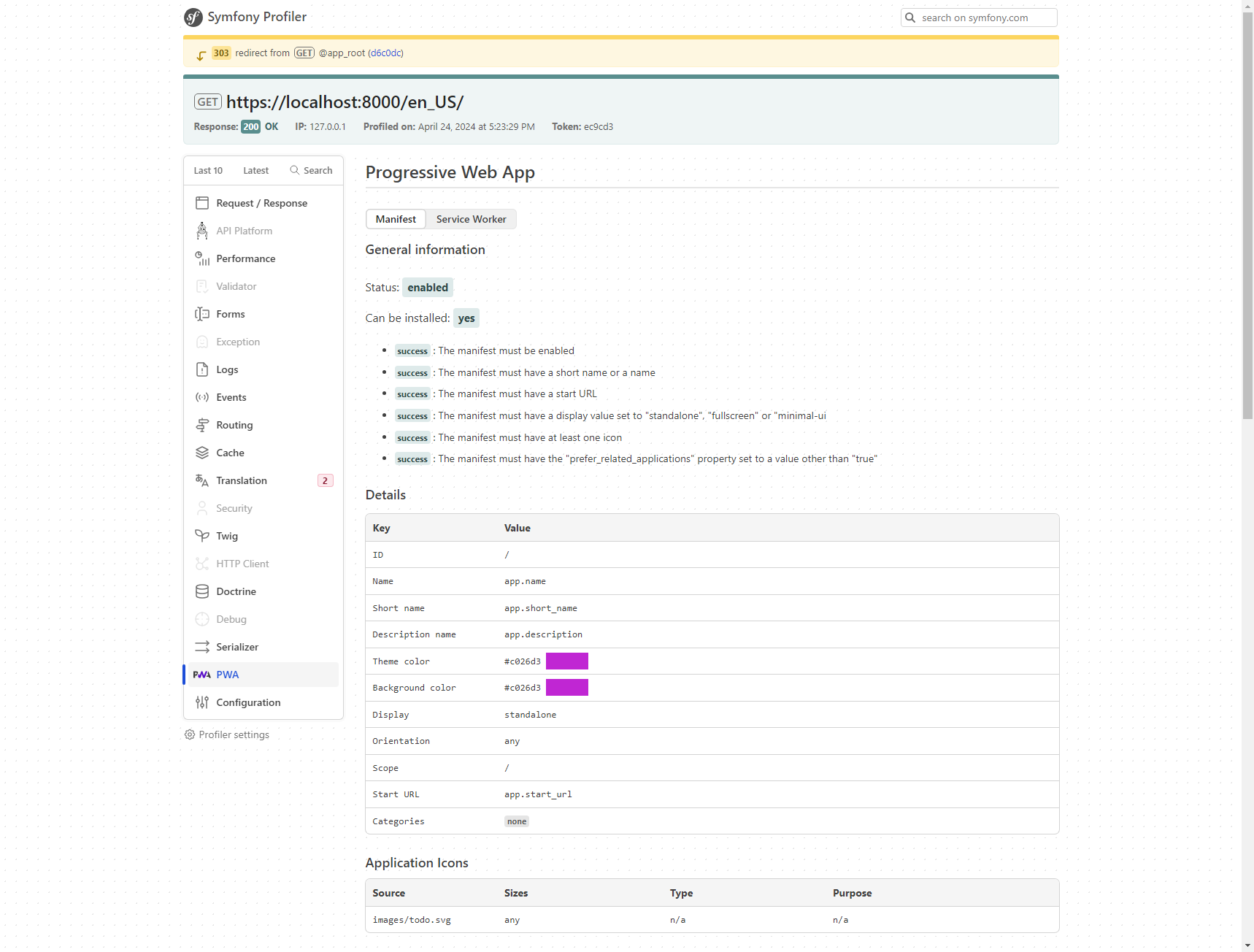
The bundle integrates with Symfony's Web Debug Toolbar, providing a dedicated PWA panel for inspecting your Progressive Web App configuration.
### What the Toolbar Shows
**Manifest Tab:**
* Current manifest configuration
* App metadata (name, icons, colors, display mode)
* Installability status
* Generated manifest JSON
* Icon verification
**Service Worker Tab:**
* Service worker status and registration
* Caching strategies configured
* Workbox configuration
* Active cache names
* Custom rules applied
**Icons & Assets:**
* Generated icons (all sizes and formats)
* Favicon status
* Screenshot images
* Startup images (iOS)
PWA Debug Toolbar - Manifest Tab
### Installability Checker
The toolbar includes an installability checker that analyzes your PWA configuration:
✅ **Green status**: App meets installation requirements ⚠️ **Yellow status**: App partially meets requirements (may work on some platforms) ❌ **Red status**: Missing required configuration
{% hint style="warning" %}
Browser installation requirements change frequently. The bundle's installability indicator is a guide, but actual installation availability depends on the browser and platform.
{% endhint %}
## Service Worker Debugging
Debugging service workers requires a different approach than regular JavaScript.
### Development Mode Features
In development (`APP_ENV=dev`), the service worker includes:
**Verbose Logging:**
* All Workbox operations logged to console
* Cache hit/miss information
* Route matching details
* Background sync status
**Inline Comments:**
* Explanation of each caching strategy
* Route pattern documentation
* Custom rule descriptions
**Source Maps:**
* Easier debugging with readable code
* Stack traces point to actual source
### Browser DevTools
**Chrome/Edge DevTools:**
1. Open DevTools (F12)
2. Go to **Application** tab
3. Select **Service Workers** in the sidebar
From here you can:
* See registration status
* Unregister the service worker
* Update on reload
* Bypass for network
* View cached resources in **Cache Storage**
**Firefox DevTools:**
1. Open DevTools (F12)
2. Go to **Application** tab (or about:debugging#/runtime/this-firefox)
3. View service workers and storage
### Common Debugging Tasks
**Force Service Worker Update:**
```javascript
// In browser console
navigator.serviceWorker.getRegistrations().then(registrations => {
registrations.forEach(reg => reg.update());
});
```
**Clear All Caches:**
```javascript
// In browser console
caches.keys().then(names => {
names.forEach(name => caches.delete(name));
});
```
**Check Current Service Worker:**
```javascript
// In browser console
navigator.serviceWorker.controller
```
### Production Mode
In production (`APP_ENV=prod`), the service worker is optimized:
* All debugging code removed
* Comments stripped out
* Minified for smaller file size
* Console logging disabled
This reduces file size and improves performance.
## Logging Configuration
The bundle uses PSR-3 logging to record important events and errors.
### Default Logger
By default, the bundle uses Symfony's default logger channel.
### Custom Logger
Configure a custom logger for PWA-specific logging:
{% code title="config/packages/pwa.yaml" lineNumbers="true" %}
```yaml
pwa:
logger: 'monolog.logger.pwa'
```
{% endcode %}
Then define the logger in your Monolog configuration:
{% code title="config/packages/monolog.yaml" lineNumbers="true" %}
```yaml
monolog:
channels: ['pwa']
handlers:
pwa:
type: stream
path: '%kernel.logs_dir%/pwa.log'
level: debug
channels: ['pwa']
```
{% endcode %}
### What Gets Logged
The bundle logs:
* Manifest compilation events
* Service worker generation
* Icon processing
* Asset compilation
* Configuration errors
* Runtime warnings
### Logging Levels
* **DEBUG**: Detailed processing information (development only)
* **INFO**: Normal operational messages
* **WARNING**: Non-critical issues (e.g., missing optional config)
* **ERROR**: Critical problems that prevent PWA functionality
## Development Tips
### Testing Offline Mode
**Method 1: Browser DevTools**
1. Open DevTools → Network tab
2. Check "Offline" checkbox
3. Reload the page
**Method 2: Throttling**
1. Open DevTools → Network tab
2. Select "Slow 3G" or "Fast 3G"
3. Test performance with limited connectivity
### Testing Installation
**Desktop:**
1. Open your app in Chrome/Edge
2. Look for install icon in address bar
3. Click to test installation flow
**Mobile:**
1. Visit your app on a real device or emulator
2. Look for "Add to Home Screen" prompt
3. Test the installed app experience
### Cache Inspection
View cached resources:
1. DevTools → Application tab
2. Expand **Cache Storage** in sidebar
3. Click on cache names to see contents
4. Right-click resources to delete
### Manifest Validation
Validate your manifest:
1. DevTools → Application tab
2. Click **Manifest** in sidebar
3. Review all properties
4. Check for warnings or errors
### Testing Updates
Test how your PWA handles updates:
1. Make a change to your service worker config
2. Deploy the update
3. Reload the app
4. Check that service worker updates
5. Verify new version activates
Use `skipWaiting: false` in config to test manual update flows.
## Common Development Issues
### Manifest Not Loading
**Symptoms:** Manifest link appears in HTML but DevTools shows "No manifest detected"
**Solutions:**
1. Clear browser cache
2. Check manifest URL is accessible
3. Verify JSON syntax (use a JSON validator)
4. Ensure `{{ pwa() }}` is in `` section
### Service Worker Not Updating
**Symptoms:** Changes to service worker don't appear
**Solutions:**
1. Hard refresh (Ctrl+Shift+R / Cmd+Shift+R)
2. Click "Update" in DevTools → Application → Service Workers
3. Check "Update on reload" in DevTools
4. Unregister and re-register the service worker
### Install Prompt Not Showing
**Symptoms:** No install option appears
**Check:**
1. HTTPS is enabled (or using localhost)
2. Manifest has required properties
3. Service worker is registered
4. No console errors
5. User engagement criteria met (varies by browser)
### Caching Issues
**Symptoms:** Old content still showing after updates
**Solutions:**
1. Update cache version in service worker config
2. Clear cache storage in DevTools
3. Implement cache expiration strategies
4. Use cache-first only for static assets
## Best Practices for Development
1. **Use HTTPS locally**: Use `symfony serve` with TLS or configure a local SSL certificate
2. **Test on real devices**: Emulators don't perfectly match real device behavior
3. **Monitor console**: Watch for service worker errors and warnings
4. **Clear cache regularly**: Prevent stale data during development
5. **Test offline scenarios**: Ensure graceful degradation
6. **Validate manifest**: Use browser DevTools and online validators
7. **Version your caches**: Update cache names when content changes
---
# Agent Instructions
This documentation is published with GitBook. GitBook is the documentation platform designed so that both humans and AI agents can read, navigate, and reason over technical content effectively. Learn more at gitbook.com.
## Querying This Documentation
If you need additional information that is not directly available in this page, you can query the documentation by asking a question.
Perform an HTTP GET request on the following URL with the `ask` and `goal` query parameters:
```
GET https://pwa.spomky-labs.com/1.4.x/development.md?ask=&goal=
```
`ask` is the immediate question: it should be specific, self-contained, and written in natural language.
`goal` is what the user is ultimately trying to achieve, the reason they need the answer. Sharing it helps GitBook give you a better, more relevant answer. A goal is most helpful when it describes the outcome the user wants rather than restating the question. For example, with `ask=how do I create an API token`, a goal like `automate deployments from our CI pipeline` lets GitBook tailor the answer to that use case.
The response will contain a direct answer to the question and relevant excerpts and sources from the documentation.
Use this mechanism when the answer is not explicitly present in the current page, you need clarification or additional context, or you want to retrieve related documentation sections.