> For the complete documentation index, see [llms.txt](https://pwa.spomky-labs.com/llms.txt). Markdown versions of documentation pages are available by appending `.md` to page URLs; this page is available as [Markdown](https://pwa.spomky-labs.com/1.4.x/the-manifest/screenshots.md).
# Screenshots
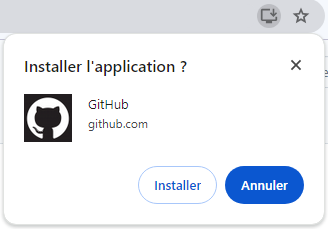
Progressive Web App screenshots enable richer installation UI. As shown below, by default only the application name and short name are visible.
GitHub installation UI
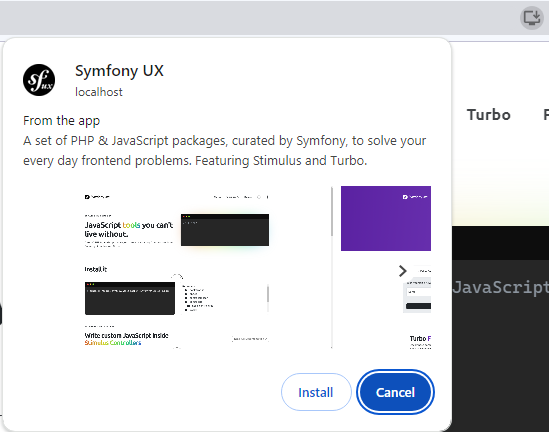
However, by including screenshots in the web app manifest, the installation experience can be significantly improved. These screenshots give users a visual preview of the app, enhancing their understanding and increasing the likelihood of installation.
Screenshots should showcase the most important functionalities of your application and be of high quality to attract users.
In the example below, a selection of screenshots are visible and the user can navigate to show them all. On mobile devices, the interface is different, but shows the same information.
## Overview
Screenshots are an essential part of your PWA's installation experience. They help users understand what your app does before installing it.
**Key benefits**:
* Enhanced installation UI with visual previews
* Increased installation conversion rates
* Showcase app's key features and functionality
* Platform-specific presentation (Android, Windows, etc.)
* Support for different device form factors (mobile, desktop)
* Automatic format conversion and optimization
**Browser/Platform Support**:
| Platform | Support | Display Location |
| ---------------- | ---------- | ----------------------------- |
| Chrome (Desktop) | ✅ Full | Installation dialog |
| Chrome (Android) | ✅ Full | WebAPK install screen |
| Edge (Desktop) | ✅ Full | Installation dialog |
| Windows Store | ✅ Full | Store listing |
| Samsung Internet | ✅ Full | Install prompt |
| Safari (iOS) | ⚠️ Limited | Not displayed in install flow |
| Firefox | ⚠️ Limited | Partial support |
## Basic Configuration
### Simple Configuration
{% code title="/config/packages/pwa.yaml" lineNumbers="true" %}
```yaml
pwa:
manifest:
enabled: true
screenshots:
# Simple string format (path only)
- "images/screenshot-feature1.png"
- "images/screenshot-feature2.png"
- "images/screenshot-feature3.png"
```
{% endcode %}
### Complete Configuration
{% code title="/config/packages/pwa.yaml" lineNumbers="true" %}
```yaml
pwa:
manifest:
enabled: true
screenshots:
# Desktop screenshot with all parameters
- src: "images/desktop-dashboard.png"
width: 1920
height: 1080
format: "webp"
label: "Main dashboard with analytics"
form_factor: "wide"
platform: "windows"
# Mobile screenshot
- src: "images/mobile-home.png"
width: 1080
height: 1920
format: "webp"
label: "Home screen on mobile"
form_factor: "narrow"
platform: "android"
# Tablet screenshot
- src: "images/tablet-catalog.png"
width: 1280
height: 800
label: "Product catalog on tablet"
form_factor: "wide"
platform: "android"
```
{% endcode %}
## Configuration Parameters
### `src` Parameter
The `src` parameter specifies the path to your screenshot image.
**Asset Mapper Integration**:
```yaml
screenshots:
- src: "images/screenshot.png" # Served via Asset Mapper
```
**Absolute URLs**:
```yaml
screenshots:
- src: "https://cdn.example.com/screenshots/app.png"
```
**Best Practices**:
* Use high-quality images (Full HD or higher recommended)
* Keep file sizes reasonable (< 500 KB per screenshot)
* Use consistent dimensions per form factor
* Prefer WebP format for smaller file sizes
### `width` and `height` Parameters
Specify screenshot dimensions in pixels. If omitted, dimensions are detected automatically.
{% code title="/config/packages/pwa.yaml" lineNumbers="true" %}
```yaml
screenshots:
- src: "images/desktop.png"
width: 1920 # Width in pixels
height: 1080 # Height in pixels
```
{% endcode %}
**Why specify dimensions?**
* Improves manifest parsing performance
* Ensures correct aspect ratio detection
* Helps browsers choose appropriate screenshot for device
* Required for some platform app stores
### `format` Parameter
The `format` parameter specifies the image format. The bundle can **automatically convert** images to the specified format.
**Supported formats**:
* `"png"` - Lossless, good for UI screenshots
* `"jpg"` or `"jpeg"` - Lossy, smaller file sizes
* `"webp"` - Modern format, best compression
{% code title="/config/packages/pwa.yaml" lineNumbers="true" %}
```yaml
screenshots:
# Source is PNG, bundle converts to WebP
- src: "images/screenshot.png"
format: "webp" # Automatic conversion!
# Source is PNG, stays as PNG
- src: "images/screenshot.png"
format: "png"
# Source is PNG, converted to JPEG
- src: "images/screenshot.png"
format: "jpg"
```
{% endcode %}
{% hint style="success" %}
**Automatic Conversion**: The bundle automatically converts images when the `format` parameter differs from the source file format. This makes it easy to optimize all screenshots as WebP without manually converting files.
{% endhint %}
**Format Recommendations**:
| Use Case | Recommended Format | Why |
| --------------------- | ------------------ | ----------------------------- |
| UI Screenshots | WebP or PNG | Sharp text, no artifacts |
| Photo-heavy screens | WebP or JPEG | Better compression for photos |
| Maximum compatibility | PNG | Universally supported |
| Smallest file size | WebP | Best compression ratio |
### `label` Parameter
The label parameter provides a brief description or caption for the screenshot. This helps users understand what the feature or screen is about.
{% code title="/config/packages/pwa.yaml" lineNumbers="true" %}
```yaml
screenshots:
- src: "images/dashboard.png"
label: "Main dashboard view with real-time analytics"
- src: "images/settings.png"
label: "Customizable settings and preferences"
```
{% endcode %}
**Label Best Practices**:
* Keep labels concise (5-10 words)
* Describe the feature or functionality shown
* Use consistent tone across all labels
* Avoid redundant information (don't repeat app name)
**Translation Support**:
The `label` parameter supports Symfony translations:
{% code title="/config/packages/pwa.yaml" lineNumbers="true" %}
```yaml
screenshots:
- src: "images/dashboard.png"
label: "app.screenshots.dashboard" # Translation key
```
{% endcode %}
{% code title="/translations/messages.en.yaml" lineNumbers="true" %}
```yaml
app:
screenshots:
dashboard: "Main dashboard with analytics"
settings: "User settings and preferences"
```
{% endcode %}
{% code title="/translations/messages.fr.yaml" lineNumbers="true" %}
```yaml
app:
screenshots:
dashboard: "Tableau de bord principal avec analytique"
settings: "Paramètres et préférences utilisateur"
```
{% endcode %}
### `platform` Parameter
The `platform` parameter specifies which operating system or distribution platform the screenshot is intended for. This helps display appropriate screenshots for users on different devices.
{% code title="/config/packages/pwa.yaml" lineNumbers="true" %}
```yaml
screenshots:
# Android-specific screenshot
- src: "images/android-home.png"
platform: "android"
label: "Home screen on Android"
# iOS-specific screenshot
- src: "images/ios-home.png"
platform: "ios"
label: "Home screen on iOS"
# Windows-specific screenshot
- src: "images/windows-dashboard.png"
platform: "windows"
label: "Dashboard on Windows"
```
{% endcode %}
**Device Platform Identifiers**:
* `"android"` - Android devices
* `"chromeos"` - ChromeOS devices
* `"ipados"` - iPad devices
* `"ios"` - iPhone devices
* `"kaios"` - KaiOS devices
* `"macos"` - macOS devices
* `"windows"` - Windows devices
* `"xbox"` - Xbox devices
**Distribution Platform Identifiers**:
* `"chrome_web_store"` - Chrome Web Store
* `"itunes"` - Apple App Store
* `"microsoft-inbox"` - Microsoft built-in apps
* `"microsoft-store"` - Microsoft Store
* `"play"` - Google Play Store
{% hint style="info" %}
If `platform` is not specified, the screenshot is considered universal and may be shown on any platform.
{% endhint %}
### `form_factor` Parameter
The `form_factor` parameter defines the intended device form factor for your screenshots. This helps browsers display appropriate screenshots based on the user's device.
**Possible values**:
* `"narrow"` - Best suited for narrow screen devices (phones, portrait tablets)
* `"wide"` - Intended for wider screen devices (desktops, landscape tablets)
{% code title="/config/packages/pwa.yaml" lineNumbers="true" %}
```yaml
screenshots:
# Mobile/phone screenshots
- src: "images/mobile-1.png"
form_factor: "narrow"
label: "Mobile home screen"
# Desktop/tablet screenshots
- src: "images/desktop-1.png"
form_factor: "wide"
label: "Desktop dashboard"
```
{% endcode %}
{% hint style="info" %}
**Automatic Detection**: If `form_factor` is not specified, it's automatically determined using the screenshot dimensions:
* Aspect ratio > 1 (landscape) → "wide"
* Aspect ratio ≤ 1 (portrait) → "narrow"
{% endhint %}
**Form Factor Guidelines**:
| Form Factor | Typical Dimensions | Aspect Ratio | Use Cases |
| ----------- | --------------------- | ------------ | ------------------------ |
| `"narrow"` | 1080x1920 (portrait) | 9:16 | Phones, portrait tablets |
| `"narrow"` | 750x1334 (iPhone 8) | 9:16 | Mobile devices |
| `"wide"` | 1920x1080 (landscape) | 16:9 | Desktops, laptops |
| `"wide"` | 1280x720 (HD) | 16:9 | Tablets (landscape) |
### `reference` Parameter
The `reference` parameter allows you to specify a URL reference for the screenshot. This is for documentation purposes only and is **not used by the bundle** in the generated manifest.
{% code title="/config/packages/pwa.yaml" lineNumbers="true" %}
```yaml
screenshots:
- src: "images/dashboard.png"
reference: "https://design.example.com/specs/dashboard-v2"
label: "Dashboard v2 design"
```
{% endcode %}
**Use cases**:
* Link to design specifications
* Reference Figma or design tool URLs
* Internal documentation links
* Version tracking
## Screenshot Creation
### Recommended Dimensions
**Mobile (Narrow)**:
| Device | Resolution | Aspect Ratio |
| --------------- | ---------- | ------------ |
| iPhone 14 Pro | 1179×2556 | 9:19.5 |
| iPhone 14 | 1170×2532 | 9:19.5 |
| iPhone 8 | 750×1334 | 9:16 |
| Android (1080p) | 1080×1920 | 9:16 |
| Android (720p) | 720×1280 | 9:16 |
**Desktop/Tablet (Wide)**:
| Device | Resolution | Aspect Ratio |
| ----------- | ---------- | ------------ |
| Full HD | 1920×1080 | 16:9 |
| HD | 1280×720 | 16:9 |
| iPad Pro | 2048×1536 | 4:3 |
| Surface Pro | 2736×1824 | 3:2 |
### Screenshot Creation Methods
**1. Browser DevTools (Recommended)**
```bash
# Chrome/Edge DevTools
1. Open your PWA in browser (F12)
2. Click device toolbar (Ctrl+Shift+M)
3. Select target device/resolution
4. Navigate to the screen you want to capture
5. Click three-dot menu → "Capture screenshot"
# Or: Cmd/Ctrl+Shift+P → "Capture screenshot"
```
**2. Automated Tools (Puppeteer)**
{% code title="scripts/generate-screenshots.js" lineNumbers="true" %}
```javascript
const puppeteer = require('puppeteer');
async function captureScreenshots() {
const browser = await puppeteer.launch();
const page = await browser.newPage();
// Desktop screenshot (1920x1080)
await page.setViewport({ width: 1920, height: 1080 });
await page.goto('https://your-app.com/dashboard');
await page.screenshot({
path: 'assets/images/desktop-dashboard.png',
fullPage: false
});
// Mobile screenshot (1080x1920)
await page.setViewport({ width: 1080, height: 1920 });
await page.goto('https://your-app.com/');
await page.screenshot({
path: 'assets/images/mobile-home.png',
fullPage: false
});
await browser.close();
}
captureScreenshots();
```
{% endcode %}
**3. Playwright**
{% code title="scripts/generate-screenshots.js" lineNumbers="true" %}
```javascript
const { chromium } = require('playwright');
async function captureScreenshots() {
const browser = await chromium.launch();
const context = await browser.newContext();
const page = await context.newPage();
// Desktop
await page.setViewportSize({ width: 1920, height: 1080 });
await page.goto('https://your-app.com/dashboard');
await page.screenshot({
path: 'assets/images/desktop-dashboard.png'
});
// Mobile
await page.setViewportSize({ width: 1080, height: 1920 });
await page.goto('https://your-app.com/');
await page.screenshot({
path: 'assets/images/mobile-home.png'
});
await browser.close();
}
captureScreenshots();
```
{% endcode %}
**4. OS Screenshot Tools**
* **Windows**: Win + Shift + S
* **macOS**: Cmd + Shift + 4 (select area) or Cmd + Shift + 5 (advanced)
* **Linux**: PrtScn or Shift + PrtScn
## Complete Use Cases
### Use Case 1: E-Commerce App
{% code title="/config/packages/pwa.yaml" lineNumbers="true" %}
```yaml
pwa:
manifest:
name: "ShopPro"
short_name: "ShopPro"
screenshots:
# Desktop screenshots
- src: "screenshots/desktop-home.png"
width: 1920
height: 1080
format: "webp"
label: "Browse thousands of products"
form_factor: "wide"
platform: "windows"
- src: "screenshots/desktop-cart.png"
width: 1920
height: 1080
format: "webp"
label: "Simple checkout process"
form_factor: "wide"
platform: "windows"
- src: "screenshots/desktop-product.png"
width: 1920
height: 1080
format: "webp"
label: "Detailed product views"
form_factor: "wide"
platform: "windows"
# Mobile screenshots
- src: "screenshots/mobile-home.png"
width: 1080
height: 1920
format: "webp"
label: "Shop on the go"
form_factor: "narrow"
platform: "android"
- src: "screenshots/mobile-search.png"
width: 1080
height: 1920
format: "webp"
label: "Fast product search"
form_factor: "narrow"
platform: "android"
- src: "screenshots/mobile-orders.png"
width: 1080
height: 1920
format: "webp"
label: "Track your orders"
form_factor: "narrow"
platform: "android"
```
{% endcode %}
### Use Case 2: Productivity App with Platform-Specific Screens
{% code title="/config/packages/pwa.yaml" lineNumbers="true" %}
```yaml
pwa:
manifest:
name: "TaskMaster Pro"
screenshots:
# Android screenshots
- src: "screenshots/android-tasks.png"
width: 1080
height: 1920
label: "app.screenshots.tasks"
platform: "android"
form_factor: "narrow"
- src: "screenshots/android-calendar.png"
width: 1080
height: 1920
label: "app.screenshots.calendar"
platform: "android"
form_factor: "narrow"
# iOS screenshots (different UI)
- src: "screenshots/ios-tasks.png"
width: 1170
height: 2532
label: "app.screenshots.tasks"
platform: "ios"
form_factor: "narrow"
- src: "screenshots/ios-calendar.png"
width: 1170
height: 2532
label: "app.screenshots.calendar"
platform: "ios"
form_factor: "narrow"
# Desktop screenshots
- src: "screenshots/windows-dashboard.png"
width: 1920
height: 1080
label: "app.screenshots.dashboard"
platform: "windows"
form_factor: "wide"
- src: "screenshots/macos-dashboard.png"
width: 1920
height: 1080
label: "app.screenshots.dashboard"
platform: "macos"
form_factor: "wide"
```
{% endcode %}
### Use Case 3: Multi-Language App
{% code title="/config/packages/pwa.yaml" lineNumbers="true" %}
```yaml
pwa:
manifest:
name: "GlobalNews"
screenshots:
- src: "screenshots/home-en.png"
width: 1920
height: 1080
label: "news.screenshots.home"
form_factor: "wide"
- src: "screenshots/articles-en.png"
width: 1920
height: 1080
label: "news.screenshots.articles"
form_factor: "wide"
- src: "screenshots/mobile-en.png"
width: 1080
height: 1920
label: "news.screenshots.mobile"
form_factor: "narrow"
```
{% endcode %}
{% code title="/translations/messages.en.yaml" lineNumbers="true" %}
```yaml
news:
screenshots:
home: "Breaking news from around the world"
articles: "In-depth articles and analysis"
mobile: "Stay informed on the go"
```
{% endcode %}
{% code title="/translations/messages.fr.yaml" lineNumbers="true" %}
```yaml
news:
screenshots:
home: "Actualités du monde entier"
articles: "Articles et analyses approfondis"
mobile: "Restez informé en déplacement"
```
{% endcode %}
## Screenshot Optimization
### File Size Optimization
**1. Use WebP Format**
WebP typically provides 25-35% better compression than PNG or JPEG:
{% code title="/config/packages/pwa.yaml" lineNumbers="true" %}
```yaml
screenshots:
# Bundle automatically converts PNG to WebP
- src: "screenshots/dashboard.png"
format: "webp" # Auto-conversion!
```
{% endcode %}
**2. Optimize Before Upload**
Using command-line tools:
```bash
# Using ImageMagick
convert input.png -quality 85 -define webp:lossless=false output.webp
# Using cwebp (WebP encoder)
cwebp -q 80 input.png -o output.webp
# Using pngquant (for PNG)
pngquant --quality=65-80 input.png -o output.png
```
**3. Compress Existing Images**
Using Node.js with Sharp:
{% code title="scripts/optimize-screenshots.js" lineNumbers="true" %}
```javascript
const sharp = require('sharp');
const fs = require('fs');
const path = require('path');
const screenshotsDir = 'assets/images/screenshots';
const outputDir = 'assets/images/screenshots-optimized';
fs.readdirSync(screenshotsDir).forEach(file => {
const inputPath = path.join(screenshotsDir, file);
const outputPath = path.join(outputDir, file.replace(/\.(png|jpg)$/, '.webp'));
sharp(inputPath)
.webp({ quality: 80 })
.toFile(outputPath)
.then(info => console.log(`Optimized ${file}: ${info.size} bytes`))
.catch(err => console.error(`Error processing ${file}:`, err));
});
```
{% endcode %}
### File Size Guidelines
| Screenshot Type | Target Size | Maximum Size |
| ----------------------- | ----------- | ------------ |
| Mobile (narrow) | < 200 KB | < 500 KB |
| Desktop (wide) | < 300 KB | < 800 KB |
| Total (all screenshots) | < 2 MB | < 5 MB |
### Image Quality Best Practices
1. **Use high-resolution source**
* Capture at actual device resolution (not scaled up)
* Use 2x or 3x scale for retina displays
2. **Remove sensitive information**
* No real user data
* No API keys or tokens visible
* Use placeholder/demo content
3. **Consistent visual design**
* Same theme (light/dark) across all screenshots
* Consistent UI state (logged in, data loaded)
* Professional appearance (no dev tools, no errors)
4. **Optimize content**
* Show actual features, not loading states
* Include realistic but anonymized data
* Highlight key functionality
## Platform-Specific Requirements
### Android / Google Play
**Requirements**:
* Minimum: 2 screenshots
* Maximum: 8 screenshots
* Format: PNG or JPEG
* Dimensions: 320px - 3840px (width or height)
* Aspect ratio: 16:9 or 9:16 recommended
{% code title="/config/packages/pwa.yaml" lineNumbers="true" %}
```yaml
screenshots:
- src: "screenshots/android-1.png"
width: 1080
height: 1920
platform: "android"
form_factor: "narrow"
label: "Home screen"
- src: "screenshots/android-2.png"
width: 1080
height: 1920
platform: "android"
form_factor: "narrow"
label: "Features view"
```
{% endcode %}
### iOS / App Store
**Requirements**:
* Screenshots for each supported device size
* Format: PNG or JPEG
* No transparency
* Actual device screenshots preferred
* Different sizes for iPhone and iPad
{% code title="/config/packages/pwa.yaml" lineNumbers="true" %}
```yaml
screenshots:
# iPhone 14 Pro
- src: "screenshots/iphone-14-pro-1.png"
width: 1179
height: 2556
platform: "ios"
form_factor: "narrow"
# iPad Pro
- src: "screenshots/ipad-pro-1.png"
width: 2048
height: 2732
platform: "ipados"
form_factor: "narrow"
```
{% endcode %}
### Windows / Microsoft Store
**Requirements**:
* Minimum: 1 screenshot
* Format: PNG, JPEG, or GIF
* Dimensions: Minimum 1366×768 or larger
* Aspect ratio: 16:9 recommended
{% code title="/config/packages/pwa.yaml" lineNumbers="true" %}
```yaml
screenshots:
- src: "screenshots/windows-1.png"
width: 1920
height: 1080
platform: "windows"
form_factor: "wide"
label: "Dashboard on Windows"
```
{% endcode %}
## Testing Screenshots
### 1. Validate in Manifest
Check that screenshots are correctly included in the generated manifest:
```bash
# Open your manifest.json
curl https://your-app.com/manifest.json | jq '.screenshots'
```
Expected output:
```json
[
{
"src": "/assets/images/screenshot-abc123.webp",
"sizes": "1920x1080",
"type": "image/webp",
"label": "Dashboard view",
"form_factor": "wide"
}
]
```
### 2. Browser DevTools
```bash
1. Open DevTools (F12)
2. Go to Application tab
3. Click "Manifest" in sidebar
4. Scroll to "Screenshots" section
5. Verify:
- All screenshots are listed
- Images load correctly
- Dimensions are correct
- Labels appear properly
```
### 3. Test Installation Flow
**Desktop**:
```bash
1. Open your PWA in Chrome/Edge
2. Click install button (or three-dot menu → "Install")
3. Verify screenshots appear in install dialog
4. Check that they're sharp and properly sized
```
**Android**:
```bash
1. Open your PWA in Chrome for Android
2. Trigger "Add to Home Screen" prompt
3. Verify screenshots appear in WebAPK install screen
4. Swipe through screenshots
5. Verify labels are visible
```
### 4. Lighthouse PWA Audit
```bash
# Run Lighthouse audit
npx lighthouse https://your-app.com --view --preset=desktop
# Check PWA category
# Look for "Provides screenshots" check
```
## Best Practices
### 1. Quantity and Sequence
**Recommended number**:
* Minimum: 3 screenshots
* Ideal: 4-6 screenshots
* Maximum: 8 screenshots (platform limit)
**Logical sequence**:
{% code title="/config/packages/pwa.yaml" lineNumbers="true" %}
```yaml
screenshots:
# 1. Welcome/landing screen
- src: "screenshots/01-welcome.png"
label: "Welcome to TaskMaster"
# 2. Main interface
- src: "screenshots/02-dashboard.png"
label: "Your task dashboard"
# 3. Key feature #1
- src: "screenshots/03-create-task.png"
label: "Create tasks quickly"
# 4. Key feature #2
- src: "screenshots/04-calendar.png"
label: "Calendar integration"
# 5. Additional value
- src: "screenshots/05-reports.png"
label: "Track your productivity"
```
{% endcode %}
### 2. Content Quality
```yaml
# ✅ Good - Shows real feature with clear UI
screenshots:
- src: "screenshots/dashboard-with-data.png"
label: "Real-time analytics dashboard"
# ❌ Avoid - Empty state, no value shown
screenshots:
- src: "screenshots/empty-dashboard.png"
label: "Dashboard"
```
**Quality checklist**:
* [ ] Show actual features, not loading screens
* [ ] Use realistic but anonymized data
* [ ] Remove developer tools, debug info
* [ ] Ensure text is readable
* [ ] Check for spelling errors in UI
* [ ] Verify consistent theme (all light or all dark)
### 3. Form Factor Strategy
Provide screenshots for both narrow and wide form factors:
{% code title="/config/packages/pwa.yaml" lineNumbers="true" %}
```yaml
screenshots:
# Mobile-first (narrow)
- src: "screenshots/mobile-home.png"
form_factor: "narrow"
- src: "screenshots/mobile-features.png"
form_factor: "narrow"
- src: "screenshots/mobile-settings.png"
form_factor: "narrow"
# Desktop (wide)
- src: "screenshots/desktop-dashboard.png"
form_factor: "wide"
- src: "screenshots/desktop-features.png"
form_factor: "wide"
- src: "screenshots/desktop-settings.png"
form_factor: "wide"
```
{% endcode %}
### 4. Performance Optimization
**Minimize file sizes**:
```yaml
screenshots:
# Use WebP format
- src: "screenshots/home.png"
format: "webp"
# Specify dimensions to avoid browser detection
- src: "screenshots/dashboard.png"
width: 1920
height: 1080
format: "webp"
```
### 5. Accessibility
**Descriptive labels**:
```yaml
# ✅ Good - Describes what's shown
screenshots:
- src: "screenshots/dashboard.png"
label: "Dashboard showing sales analytics and charts"
# ❌ Avoid - Too generic
screenshots:
- src: "screenshots/dashboard.png"
label: "Dashboard"
```
### 6. Localization
Use translation keys for international apps:
{% code title="/config/packages/pwa.yaml" lineNumbers="true" %}
```yaml
screenshots:
- src: "screenshots/home.png"
label: "app.screenshots.home"
- src: "screenshots/features.png"
label: "app.screenshots.features"
```
{% endcode %}
## Common Issues
### 1. Screenshots Not Appearing in Install Dialog
**Problem**: Screenshots configured but not showing during installation
**Solutions**:
```yaml
# ✅ Check 1: Verify screenshots are in manifest
# Visit https://your-app.com/manifest.json
# ✅ Check 2: Ensure images are accessible
# Open screenshot URLs directly in browser
# ✅ Check 3: Clear cache and reinstall
```
```bash
# Clear cache in Chrome
1. Open chrome://serviceworker-internals/
2. Unregister service worker
3. Clear browser cache (Ctrl+Shift+Del)
4. Reload app and reinstall
```
### 2. Screenshots Appear Blurry or Pixelated
**Problem**: Low quality or incorrect dimensions
**Solutions**:
```yaml
# ✅ Use high-resolution source images
screenshots:
- src: "screenshots/dashboard-fullhd.png" # 1920x1080
width: 1920
height: 1080
# ❌ Avoid upscaling small images
screenshots:
- src: "screenshots/dashboard-small.png" # 640x480 scaled up
width: 1920
height: 1080
```
### 3. Wrong Screenshots Shown for Device
**Problem**: Desktop screenshots shown on mobile or vice versa
**Solutions**:
```yaml
# ✅ Explicitly set form_factor
screenshots:
- src: "screenshots/mobile.png"
form_factor: "narrow" # For phones
- src: "screenshots/desktop.png"
form_factor: "wide" # For desktops
```
### 4. Screenshots Not Converting to WebP
**Problem**: `format: "webp"` specified but images not converting
**Solutions**:
```bash
# ✅ Check 1: Ensure GD or Imagick extension installed
php -m | grep -i gd
php -m | grep -i imagick
# ✅ Check 2: Verify file permissions
ls -la assets/images/screenshots/
# ✅ Check 3: Check logs for conversion errors
php bin/console debug:container pwa
```
### 5. File Size Too Large
**Problem**: Screenshots causing slow manifest loading
**Solutions**:
```yaml
# ✅ Use WebP with compression
screenshots:
- src: "screenshots/large.png"
format: "webp" # Smaller file size
# ✅ Reduce screenshot dimensions if excessive
# Instead of 4K (3840x2160), use Full HD (1920x1080)
```
## Troubleshooting Checklist
Before submitting your PWA:
* [ ] Screenshots load correctly in browser
* [ ] All images are under 500 KB each
* [ ] Total screenshot size < 2 MB
* [ ] Provided both narrow and wide screenshots
* [ ] Labels are descriptive and translated
* [ ] No sensitive data visible
* [ ] Screenshots show actual features (not empty states)
* [ ] Consistent theme across all screenshots
* [ ] Tested install flow on target platforms
* [ ] Verified screenshots in manifest.json
* [ ] Lighthouse PWA audit passes
* [ ] Screenshots appear in install dialog
## Related Documentation
* [Icons](/1.4.x/the-manifest/icons.md) - Icon configuration for your PWA
* [Application Information](/1.4.x/the-manifest/application-information.md) - App metadata configuration
* [Translations](/1.4.x/the-manifest/translations.md) - Localizing your manifest
## Resources
* **MDN Web Docs**:
* **Web.dev**:
* **PWA Builder**: - Test and validate screenshots
* **Chrome DevTools**:
* **Puppeteer**: - Automated screenshot generation
* **Playwright**: - Browser automation
* **Sharp**: - Image optimization library
---
# Agent Instructions
This documentation is published with GitBook. GitBook is the documentation platform designed so that both humans and AI agents can read, navigate, and reason over technical content effectively. Learn more at gitbook.com.
## Querying This Documentation
If you need additional information that is not directly available in this page, you can query the documentation by asking a question.
Perform an HTTP GET request on the following URL with the `ask` and `goal` query parameters:
```
GET https://pwa.spomky-labs.com/1.4.x/the-manifest/screenshots.md?ask=&goal=
```
`ask` is the immediate question: it should be specific, self-contained, and written in natural language.
`goal` is what the user is ultimately trying to achieve, the reason they need the answer. Sharing it helps GitBook give you a better, more relevant answer. A goal is most helpful when it describes the outcome the user wants rather than restating the question. For example, with `ask=how do I create an API token`, a goal like `automate deployments from our CI pipeline` lets GitBook tailor the answer to that use case.
The response will contain a direct answer to the question and relevant excerpts and sources from the documentation.
Use this mechanism when the answer is not explicitly present in the current page, you need clarification or additional context, or you want to retrieve related documentation sections.