> For the complete documentation index, see [llms.txt](https://pwa.spomky-labs.com/llms.txt). Markdown versions of documentation pages are available by appending `.md` to page URLs; this page is available as [Markdown](https://pwa.spomky-labs.com/1.4.x/the-manifest/shortcuts.md).
# Shortcuts
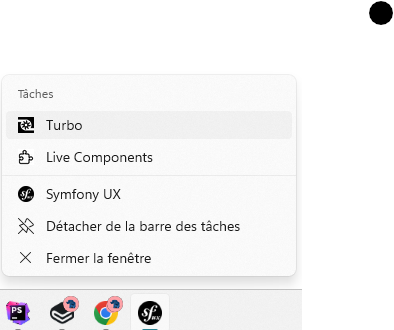
PWA shortcuts provide quick access to key features of your app directly from the app icon. When users long-press (mobile) or right-click (desktop) your installed PWA icon, they see a menu of shortcuts that take them directly to specific parts of your application.
 ## Overview
Shortcuts enhance user engagement by making your PWA's most important features instantly accessible without launching the full app first.
**Key benefits**:
* Direct access to frequently used features
* Improved user engagement and retention
* Professional app-like experience
* Platform-native shortcut menus
* Support for custom icons per shortcut
* Translatable names and descriptions
**Browser/Platform Support**:
| Platform | Support | Access Method |
| --------------------- | --------------- | ---------------------------------- |
| Android (Chrome) | ✅ Full | Long-press app icon |
| Windows (Chrome/Edge) | ✅ Full | Right-click app icon or Start menu |
| macOS (Chrome/Edge) | ✅ Full | Right-click dock icon |
| Linux (Chrome) | ✅ Full | Right-click app icon |
| iOS/iPadOS | ❌ Not supported | - |
| Safari (macOS) | ❌ Not supported | - |
**Limitations**:
* Maximum of 10 shortcuts per app (platform limit, though 4-5 is recommended)
* Not available on iOS/Safari
* Shortcuts don't work if app not installed
## Basic Configuration
### Simple Configuration
{% code title="/config/packages/pwa.yaml" lineNumbers="true" %}
```yaml
pwa:
manifest:
enabled: true
shortcuts:
- name: "New Message"
url: "/messages/new"
icons:
- src: "icons/new-message.png"
sizes: [96]
- name: "Search"
url: "/search"
icons:
- src: "icons/search.png"
sizes: [96]
```
{% endcode %}
### Complete Configuration
{% code title="/config/packages/pwa.yaml" lineNumbers="true" %}
```yaml
pwa:
manifest:
enabled: true
shortcuts:
- name: "Start New Conversation"
short_name: "New Chat"
description: "Create a new conversation with anyone"
url: "/start-chat"
icons:
- src: "icons/chat-96.png"
sizes: [96]
- src: "icons/chat-192.png"
sizes: [192]
- name: "View Unread Messages"
short_name: "Unread"
description: "View all your unread messages"
url: "/unread-messages"
icons:
- src: "icons/unread-96.png"
sizes: [96]
- src: "icons/unread-192.png"
sizes: [192]
- name: "My Profile"
short_name: "Profile"
description: "View and edit your profile"
url: "/profile"
icons:
- src: "icons/profile-96.png"
sizes: [96]
```
{% endcode %}
## Configuration Parameters
### `name` Parameter (Required)
The `name` parameter defines the full name of the shortcut displayed to the user. It should be descriptive enough to communicate the action clearly.
{% code title="/config/packages/pwa.yaml" lineNumbers="true" %}
```yaml
shortcuts:
- name: "Create New Task" # Clear and descriptive
url: "/tasks/new"
```
{% endcode %}
**Best Practices**:
* **Be Descriptive**: "Add to Favorites" > "Add"
* **Be Concise**: Keep to 2-4 words when possible
* **Use Action Verbs**: "Create", "View", "Search", "Open"
* **Be Consistent**: Use similar language across all shortcuts
* **Avoid Jargon**: Use simple, universally understood terms
**Translation Support**:
The `name` parameter supports Symfony translations:
{% code title="/config/packages/pwa.yaml" lineNumbers="true" %}
```yaml
shortcuts:
- name: "app.shortcuts.new_task" # Translation key
url: "/tasks/new"
```
{% endcode %}
{% code title="/translations/pwa.en.yaml" lineNumbers="true" %}
```yaml
app:
shortcuts:
new_task: "Create New Task"
```
{% endcode %}
{% code title="/translations/pwa.fr.yaml" lineNumbers="true" %}
```yaml
app:
shortcuts:
new_task: "Créer une nouvelle tâche"
```
{% endcode %}
### `short_name` Parameter (Optional)
The `short_name` is a concise version of `name`, used when space is limited on smaller screens or in condensed UI.
{% code title="/config/packages/pwa.yaml" lineNumbers="true" %}
```yaml
shortcuts:
- name: "Create New Task"
short_name: "New Task" # Shorter version
url: "/tasks/new"
- name: "View All Completed Tasks"
short_name: "Completed" # Much shorter
url: "/tasks/completed"
```
{% endcode %}
**Guidelines**:
* Maximum: 12 characters recommended
* Omit articles ("the", "a", "an")
* Use abbreviations if clear (e.g., "Msgs" for "Messages")
* Still should be understandable on its own
### `description` Parameter (Optional)
The `description` provides additional context about what the shortcut does. This may be shown in some UI contexts or used for accessibility.
{% code title="/config/packages/pwa.yaml" lineNumbers="true" %}
```yaml
shortcuts:
- name: "New Task"
description: "Create a new task and add it to your todo list"
url: "/tasks/new"
- name: "Search"
description: "Search through all your tasks and projects"
url: "/search"
```
{% endcode %}
**Best Practices**:
* Keep to 1-2 sentences
* Explain the benefit or outcome
* Don't just repeat the name
* Include keywords for accessibility
### `url` Parameter (Required)
The `url` parameter specifies where the user navigates when activating the shortcut. It supports multiple formats.
#### Simple String (Relative Path)
{% code title="/config/packages/pwa.yaml" lineNumbers="true" %}
```yaml
shortcuts:
- name: "Dashboard"
url: "/dashboard" # Relative path
- name: "Settings"
url: "/user/settings" # Nested path
```
{% endcode %}
#### Symfony Route Name
{% code title="/config/packages/pwa.yaml" lineNumbers="true" %}
```yaml
shortcuts:
- name: "New Task"
url: "app_task_new" # Route name without parameters
- name: "My Profile"
url: "app_user_profile" # Route name
```
{% endcode %}
#### Route with Parameters
{% code title="/config/packages/pwa.yaml" lineNumbers="true" %}
```yaml
shortcuts:
- name: "Important Tasks"
url:
path: "app_tasks_filter"
params:
category: "important"
status: "active"
- name: "Team Dashboard"
url:
path: "app_team_view"
params:
teamId: "default"
```
{% endcode %}
#### Absolute URL
{% code title="/config/packages/pwa.yaml" lineNumbers="true" %}
```yaml
shortcuts:
- name: "Help Center"
url: "https://help.example.com"
- name: "Documentation"
url: "https://docs.example.com/guide"
```
{% endcode %}
#### Path Type Reference
The `path_type_reference` option controls URL generation format:
{% code title="/config/packages/pwa.yaml" lineNumbers="true" %}
```yaml
shortcuts:
# Absolute URL: https://app.com/dashboard
- name: "Dashboard"
url:
path: "app_dashboard"
path_type_reference: 0
# Absolute path: /dashboard
- name: "Settings"
url:
path: "app_settings"
path_type_reference: 1
# Relative path: ../settings
- name: "Profile"
url:
path: "app_profile"
path_type_reference: 2
# Network path: //app.com/dashboard
- name: "Admin"
url:
path: "app_admin"
path_type_reference: 3
```
{% endcode %}
**Path Type Reference Values**:
* `0`: Absolute URL (e.g., `https://app.com/foo/bar`)
* `1`: Absolute path (e.g., `/foo/bar`)
* `2`: Relative path (e.g., `../bar`)
* `3`: Network path (e.g., `//app.com/foo/bar`)
{% hint style="warning" %}
**Router Context Required**: For absolute URLs (type 0 or 3), ensure the Request Context is properly configured. See the [Symfony router configuration](https://symfony.com/doc/current/routing.html#generating-urls-in-commands) for details.
{% endhint %}
### `icons` Parameter (Optional, Recommended)
Icons make shortcuts visually identifiable and more user-friendly. Each shortcut can have one or more icons in different sizes.
{% code title="/config/packages/pwa.yaml" lineNumbers="true" %}
```yaml
shortcuts:
- name: "New Message"
url: "/messages/new"
icons:
# Single size
- src: "icons/new-message-96.png"
sizes: [96]
- name: "Search"
url: "/search"
icons:
# Multiple sizes for better display
- src: "icons/search-96.png"
sizes: [96]
- src: "icons/search-192.png"
sizes: [192]
- name: "Profile"
url: "/profile"
icons:
# Different formats
- src: "icons/profile.png"
sizes: [96]
purpose: "any"
- src: "icons/profile-maskable.png"
sizes: [96]
purpose: "maskable"
```
{% endcode %}
**Icon Requirements**:
* **Recommended size**: 96×96 pixels (minimum)
* **Additional sizes**: 192×192, 256×256 for higher DPI displays
* **Format**: PNG (preferred), JPEG, WebP, SVG
* **Purpose**: `"any"` (default) or `"maskable"`
See the [Icons documentation](/1.4.x/the-manifest/icons.md) for complete icon configuration options.
{% hint style="warning" %}
**96×96 Icon Highly Recommended**: A 96×96 pixel icon is the standard size for shortcuts on most platforms. Always provide this size at minimum.
{% endhint %}
## Complete Use Cases
### Use Case 1: Task Management App
{% code title="/config/packages/pwa.yaml" lineNumbers="true" %}
```yaml
pwa:
manifest:
name: "TaskMaster Pro"
shortcuts:
# Quick task creation
- name: "New Task"
short_name: "New"
description: "Create a new task"
url: "app_task_create"
icons:
- src: "icons/shortcuts/new-task-96.png"
sizes: [96]
- src: "icons/shortcuts/new-task-192.png"
sizes: [192]
# View today's tasks
- name: "Today's Tasks"
short_name: "Today"
description: "View tasks due today"
url:
path: "app_tasks_filter"
params:
filter: "today"
icons:
- src: "icons/shortcuts/today-96.png"
sizes: [96]
# View high priority tasks
- name: "Important"
short_name: "Priority"
description: "View high-priority tasks"
url:
path: "app_tasks_filter"
params:
priority: "high"
icons:
- src: "icons/shortcuts/important-96.png"
sizes: [96]
# Quick search
- name: "Search Tasks"
short_name: "Search"
description: "Search all tasks and projects"
url: "app_search"
icons:
- src: "icons/shortcuts/search-96.png"
sizes: [96]
```
{% endcode %}
### Use Case 2: E-Commerce App with Translated Shortcuts
{% code title="/config/packages/pwa.yaml" lineNumbers="true" %}
```yaml
pwa:
manifest:
name: "shop.name"
shortcuts:
- name: "shop.shortcuts.cart.name"
short_name: "shop.shortcuts.cart.short"
description: "shop.shortcuts.cart.description"
url: "app_cart"
icons:
- src: "icons/cart-96.png"
sizes: [96]
- name: "shop.shortcuts.orders.name"
short_name: "shop.shortcuts.orders.short"
description: "shop.shortcuts.orders.description"
url: "app_orders"
icons:
- src: "icons/orders-96.png"
sizes: [96]
- name: "shop.shortcuts.wishlist.name"
short_name: "shop.shortcuts.wishlist.short"
description: "shop.shortcuts.wishlist.description"
url: "app_wishlist"
icons:
- src: "icons/wishlist-96.png"
sizes: [96]
- name: "shop.shortcuts.deals.name"
short_name: "shop.shortcuts.deals.short"
description: "shop.shortcuts.deals.description"
url:
path: "app_products"
params:
category: "deals"
icons:
- src: "icons/deals-96.png"
sizes: [96]
```
{% endcode %}
{% code title="/translations/pwa.en.yaml" lineNumbers="true" %}
```yaml
shop:
shortcuts:
cart:
name: "Shopping Cart"
short: "Cart"
description: "View items in your cart"
orders:
name: "My Orders"
short: "Orders"
description: "Track your orders"
wishlist:
name: "Wishlist"
short: "Wishlist"
description: "Items you've saved"
deals:
name: "Today's Deals"
short: "Deals"
description: "View special offers"
```
{% endcode %}
{% code title="/translations/pwa.fr.yaml" lineNumbers="true" %}
```yaml
shop:
shortcuts:
cart:
name: "Panier"
short: "Panier"
description: "Voir les articles dans votre panier"
orders:
name: "Mes commandes"
short: "Commandes"
description: "Suivre vos commandes"
wishlist:
name: "Liste de souhaits"
short: "Souhaits"
description: "Articles que vous avez enregistrés"
deals:
name: "Offres du jour"
short: "Offres"
description: "Voir les offres spéciales"
```
{% endcode %}
### Use Case 3: News/Media App
{% code title="/config/packages/pwa.yaml" lineNumbers="true" %}
```yaml
pwa:
manifest:
name: "Daily News"
shortcuts:
- name: "Breaking News"
short_name: "Breaking"
description: "Latest breaking news stories"
url: "/breaking"
icons:
- src: "icons/breaking-96.png"
sizes: [96]
- name: "Local News"
short_name: "Local"
description: "News from your area"
url:
path: "app_news_category"
params:
category: "local"
icons:
- src: "icons/local-96.png"
sizes: [96]
- name: "Weather"
short_name: "Weather"
description: "Current weather forecast"
url: "/weather"
icons:
- src: "icons/weather-96.png"
sizes: [96]
- name: "Saved Articles"
short_name: "Saved"
description: "Articles you've bookmarked"
url: "/saved"
icons:
- src: "icons/saved-96.png"
sizes: [96]
```
{% endcode %}
### Use Case 4: Social/Communication App
{% code title="/config/packages/pwa.yaml" lineNumbers="true" %}
```yaml
pwa:
manifest:
name: "ChatApp"
shortcuts:
- name: "New Message"
short_name: "Message"
description: "Start a new conversation"
url: "/messages/new"
icons:
- src: "icons/new-message-96.png"
sizes: [96]
- name: "Notifications"
short_name: "Alerts"
description: "View your notifications"
url: "/notifications"
icons:
- src: "icons/notifications-96.png"
sizes: [96]
- name: "Friends"
short_name: "Friends"
description: "Manage your friends list"
url: "/friends"
icons:
- src: "icons/friends-96.png"
sizes: [96]
- name: "Settings"
short_name: "Settings"
description: "App settings and preferences"
url: "/settings"
icons:
- src: "icons/settings-96.png"
sizes: [96]
```
{% endcode %}
## Platform-Specific Behavior
### Android (Chrome)
**Access**: Long-press the app icon on home screen or app drawer
**Behavior**:
* Shows up to 4-5 shortcuts in the context menu
* Shortcuts appear below app info and uninstall options
* Icons are displayed next to each shortcut name
* Tapping a shortcut opens the app to that URL
**Best Practices**:
* Use clear, concise names (3-4 words max)
* Provide 96×96 icons for sharp display
* Order by importance (most used first)
### Windows (Chrome/Edge)
**Access**: Right-click installed app icon on Desktop, Start Menu, or Taskbar
**Behavior**:
* Shortcuts appear in Windows Jump List
* Shows shortcut name and icon
* Can pin shortcuts to jump list
* Integrates with Windows shell
**Best Practices**:
* Use descriptive `short_name` for limited space
* Provide 96×96 and 192×192 icons
* Limit to 5-6 most important shortcuts
### macOS (Chrome/Edge)
**Access**: Right-click app icon in Dock or Applications folder
**Behavior**:
* Shortcuts appear in macOS context menu
* Shows icon and name
* Similar to native app shortcuts
* Limited to menu space available
**Best Practices**:
* Short, clear names work best
* Provide high-DPI icons (192×192)
* Follow macOS naming conventions
### Linux (Chrome)
**Access**: Right-click app icon
**Behavior**:
* Shows in desktop environment's context menu
* Behavior varies by DE (GNOME, KDE, etc.)
* Icon display depends on theme
## Icon Design Guidelines
### Recommended Sizes
```yaml
shortcuts:
- name: "Example"
url: "/example"
icons:
- src: "icons/example-96.png"
sizes: [96] # Minimum recommended
- src: "icons/example-192.png"
sizes: [192] # For high-DPI displays
- src: "icons/example-256.png"
sizes: [256] # Optional, for very high-DPI
```
### Design Principles
1. **Simple and Clear**
* Use simple, recognizable symbols
* Avoid text in icons (use icon graphics only)
* High contrast for visibility
2. **Consistent Style**
* Match your app's icon style
* Use same color palette
* Consistent line weights
3. **Action-Oriented**
* Icon should represent the action
* Use universal symbols when possible
* Example: "+" for create, magnifying glass for search
4. **Accessibility**
* Sufficient contrast ratios
* Don't rely solely on color
* Test at small sizes
### Creating Shortcut Icons
**Using Design Tools**:
```bash
# Figma, Sketch, Adobe XD
1. Create 96×96 artboard
2. Design icon with 8px padding
3. Export as PNG (2x for 192×192)
```
**Using Icon Libraries**:
```yaml
shortcuts:
- name: "Search"
url: "/search"
icons:
- src: "heroicons:magnifying-glass" # Symfony UX Icons
sizes: [96]
```
**Using ImageMagick** (resize existing icons):
```bash
# Resize to 96×96
convert icon.png -resize 96x96 icon-96.png
# Resize to 192×192
convert icon.png -resize 192x192 icon-192.png
```
## Testing Shortcuts
### 1. Verify Manifest
Check that shortcuts are correctly included in the manifest:
```bash
# View manifest
curl https://your-app.com/manifest.json | jq '.shortcuts'
```
Expected output:
```json
[
{
"name": "New Task",
"short_name": "New",
"description": "Create a new task",
"url": "/tasks/new",
"icons": [
{
"src": "/assets/icons/new-task-96.png",
"sizes": "96x96",
"type": "image/png"
}
]
}
]
```
### 2. Browser DevTools
```bash
1. Open DevTools (F12)
2. Go to Application tab
3. Click "Manifest" in sidebar
4. Scroll to "Shortcuts" section
5. Verify:
- All shortcuts listed
- Names and URLs correct
- Icons load properly
```
### 3. Test on Android
```bash
1. Install PWA on Android device
2. Long-press app icon on home screen
3. Verify:
- Shortcuts appear in menu
- Icons display correctly
- Names are readable
4. Tap each shortcut
5. Verify it navigates to correct URL
```
### 4. Test on Windows
```bash
1. Install PWA on Windows (Chrome/Edge)
2. Right-click app icon (Desktop/Start/Taskbar)
3. Verify:
- Shortcuts appear in Jump List
- Icons and names display
4. Click each shortcut
5. Verify navigation
```
### 5. Test on macOS
```bash
1. Install PWA on macOS
2. Right-click app icon in Dock
3. Verify shortcuts appear
4. Test each shortcut activation
```
### 6. Test Translations
For multilingual apps:
```bash
# Test different locales
1. Change browser language to target locale
2. Reinstall PWA
3. Check shortcuts menu
4. Verify translated names appear
```
## Best Practices
### 1. Quantity
**Recommended number**: 3-5 shortcuts
```yaml
# ✅ Good - Focused on key actions
shortcuts:
- name: "New Task"
- name: "Search"
- name: "Today's Tasks"
- name: "Settings"
# ❌ Avoid - Too many options overwhelm users
shortcuts:
- name: "New Task"
- name: "Edit Task"
- name: "Delete Task"
- name: "Search"
- name: "Filter"
- name: "Sort"
- name: "Export"
- name: "Import"
- name: "Settings"
- name: "Help"
```
### 2. Prioritization
Order shortcuts by importance and frequency of use:
```yaml
shortcuts:
# 1. Most common action
- name: "New Task"
url: "/tasks/new"
# 2. Frequently accessed view
- name: "Today"
url: "/tasks/today"
# 3. Important feature
- name: "Search"
url: "/search"
# 4. Settings (less frequent)
- name: "Settings"
url: "/settings"
```
### 3. Naming Consistency
```yaml
# ✅ Good - Consistent verb patterns
shortcuts:
- name: "Create Task" # Verb + Noun
- name: "View Calendar" # Verb + Noun
- name: "Search Items" # Verb + Noun
# ❌ Avoid - Inconsistent patterns
shortcuts:
- name: "New Task" # Adjective + Noun
- name: "Calendar" # Noun only
- name: "Searching" # Gerund
```
### 4. URL Scope
Ensure shortcut URLs are within your app's scope:
```yaml
# ✅ Good - URLs within app scope
pwa:
manifest:
scope: "/"
shortcuts:
- name: "Dashboard"
url: "/dashboard" # Within scope
# ⚠️ Caution - URL outside scope
shortcuts:
- name: "Help"
url: "https://help.external.com" # Opens externally
```
### 5. Analytics Integration
Track shortcut usage in your application:
{% code title="src/Controller/TaskController.php" lineNumbers="true" %}
```php
headers->get('referer');
if (str_contains($referrer ?? '', 'shortcut')) {
// Track shortcut usage
// $analytics->track('shortcut_used', ['shortcut' => 'new_task']);
}
return $this->render('tasks/create.html.twig');
}
}
```
{% endcode %}
### 6. Icon Consistency
Use consistent visual style across all shortcut icons:
```yaml
# ✅ Good - Consistent icon style
shortcuts:
- icons:
- src: "icons/new-outline-96.png" # Outline style
- icons:
- src: "icons/search-outline-96.png" # Same outline style
- icons:
- src: "icons/settings-outline-96.png" # Same outline style
# ❌ Avoid - Mixed icon styles
shortcuts:
- icons:
- src: "icons/new-filled.png" # Filled style
- icons:
- src: "icons/search-outline.png" # Outline style
- icons:
- src: "icons/settings-3d.png" # 3D style
```
## Common Issues
### 1. Shortcuts Not Appearing
**Problem**: Shortcuts menu doesn't show when right-clicking/long-pressing app icon
**Solutions**:
```yaml
# ✅ Check 1: Verify shortcuts in manifest
# Visit https://your-app.com/manifest.json
# Ensure shortcuts array is present and valid
# ✅ Check 2: Ensure PWA is installed
# Shortcuts only work for installed PWAs
# ✅ Check 3: Check platform support
# iOS/Safari don't support shortcuts
```
```bash
# ✅ Check 4: Clear cache and reinstall
1. Uninstall PWA
2. Clear browser cache
3. Clear service worker: chrome://serviceworker-internals/
4. Reinstall PWA
5. Test shortcuts again
```
### 2. Icons Not Displaying
**Problem**: Shortcut names appear but icons don't show
**Solutions**:
```yaml
# ✅ Provide 96×96 icons at minimum
shortcuts:
- name: "New Task"
url: "/tasks/new"
icons:
- src: "icons/new-task-96.png"
sizes: [96] # Required size
# ✅ Check icon paths are correct
# Ensure icons are accessible (test URL directly)
# ✅ Use supported formats
# PNG, JPEG, WebP (avoid SVG on some platforms)
```
### 3. Wrong URL Opens
**Problem**: Clicking shortcut opens wrong page or shows 404
**Solutions**:
```yaml
# ✅ Test route names
shortcuts:
- name: "Dashboard"
url: "app_dashboard" # Ensure route exists
```
```bash
# ✅ Verify route exists
php bin/console debug:router app_dashboard
# ✅ Test URL directly
# Visit the URL in browser to ensure it works
```
### 4. Translations Not Working
**Problem**: Shortcut names show translation keys instead of translated text
**Solutions**:
```bash
# ✅ Check translation files exist
ls -la translations/pwa.*
# ✅ Verify correct domain (pwa)
# Files should be named pwa.en.yaml, pwa.fr.yaml, etc.
# ✅ Clear cache
php bin/console cache:clear
# ✅ Check enabled locales
php bin/console debug:config framework enabled_locales
```
### 5. Too Many Shortcuts
**Problem**: Only first few shortcuts appear
**Solutions**:
```yaml
# ✅ Limit to 4-5 shortcuts (recommended)
# Platforms may limit display to ~4-5 shortcuts
# ✅ Prioritize most important actions
shortcuts:
- name: "Most Important" # Will always show
- name: "Second Priority" # Likely to show
- name: "Third Priority" # Might show
- name: "Fourth Priority" # May not show on all platforms
```
## Troubleshooting Checklist
Before deploying with shortcuts:
* [ ] Shortcuts defined in manifest configuration
* [ ] All shortcuts have `name` and `url` parameters
* [ ] At least one 96×96 icon per shortcut
* [ ] Icon files exist and are accessible
* [ ] URLs are valid and within app scope
* [ ] Route names (if used) exist
* [ ] Tested on target platforms (Android, Windows)
* [ ] Shortcuts appear in installed PWA
* [ ] Clicking shortcuts navigates correctly
* [ ] Icons display properly
* [ ] Translations work (if applicable)
* [ ] Limited to 3-5 most important actions
## Related Documentation
* [Icons](/1.4.x/the-manifest/icons.md) - Icon configuration for shortcuts
* [Translations](/1.4.x/the-manifest/translations.md) - Localizing shortcut names
* [Application Information](/1.4.x/the-manifest/application-information.md) - Manifest configuration
* [Symfony Routing](https://symfony.com/doc/current/routing.html) - Route configuration
## Resources
* **MDN Web Docs**:
* **Web.dev**:
* **Chrome Developers**:
* **Symfony Routing**:
* **PWA Builder**: - Test and validate shortcuts
---
# Agent Instructions
This documentation is published with GitBook. GitBook is the documentation platform designed so that both humans and AI agents can read, navigate, and reason over technical content effectively. Learn more at gitbook.com.
## Querying This Documentation
If you need additional information that is not directly available in this page, you can query the documentation by asking a question.
Perform an HTTP GET request on the following URL with the `ask` and `goal` query parameters:
```
GET https://pwa.spomky-labs.com/1.4.x/the-manifest/shortcuts.md?ask=&goal=
```
`ask` is the immediate question: it should be specific, self-contained, and written in natural language.
`goal` is what the user is ultimately trying to achieve, the reason they need the answer. Sharing it helps GitBook give you a better, more relevant answer. A goal is most helpful when it describes the outcome the user wants rather than restating the question. For example, with `ask=how do I create an API token`, a goal like `automate deployments from our CI pipeline` lets GitBook tailor the answer to that use case.
The response will contain a direct answer to the question and relevant excerpts and sources from the documentation.
Use this mechanism when the answer is not explicitly present in the current page, you need clarification or additional context, or you want to retrieve related documentation sections.
## Overview
Shortcuts enhance user engagement by making your PWA's most important features instantly accessible without launching the full app first.
**Key benefits**:
* Direct access to frequently used features
* Improved user engagement and retention
* Professional app-like experience
* Platform-native shortcut menus
* Support for custom icons per shortcut
* Translatable names and descriptions
**Browser/Platform Support**:
| Platform | Support | Access Method |
| --------------------- | --------------- | ---------------------------------- |
| Android (Chrome) | ✅ Full | Long-press app icon |
| Windows (Chrome/Edge) | ✅ Full | Right-click app icon or Start menu |
| macOS (Chrome/Edge) | ✅ Full | Right-click dock icon |
| Linux (Chrome) | ✅ Full | Right-click app icon |
| iOS/iPadOS | ❌ Not supported | - |
| Safari (macOS) | ❌ Not supported | - |
**Limitations**:
* Maximum of 10 shortcuts per app (platform limit, though 4-5 is recommended)
* Not available on iOS/Safari
* Shortcuts don't work if app not installed
## Basic Configuration
### Simple Configuration
{% code title="/config/packages/pwa.yaml" lineNumbers="true" %}
```yaml
pwa:
manifest:
enabled: true
shortcuts:
- name: "New Message"
url: "/messages/new"
icons:
- src: "icons/new-message.png"
sizes: [96]
- name: "Search"
url: "/search"
icons:
- src: "icons/search.png"
sizes: [96]
```
{% endcode %}
### Complete Configuration
{% code title="/config/packages/pwa.yaml" lineNumbers="true" %}
```yaml
pwa:
manifest:
enabled: true
shortcuts:
- name: "Start New Conversation"
short_name: "New Chat"
description: "Create a new conversation with anyone"
url: "/start-chat"
icons:
- src: "icons/chat-96.png"
sizes: [96]
- src: "icons/chat-192.png"
sizes: [192]
- name: "View Unread Messages"
short_name: "Unread"
description: "View all your unread messages"
url: "/unread-messages"
icons:
- src: "icons/unread-96.png"
sizes: [96]
- src: "icons/unread-192.png"
sizes: [192]
- name: "My Profile"
short_name: "Profile"
description: "View and edit your profile"
url: "/profile"
icons:
- src: "icons/profile-96.png"
sizes: [96]
```
{% endcode %}
## Configuration Parameters
### `name` Parameter (Required)
The `name` parameter defines the full name of the shortcut displayed to the user. It should be descriptive enough to communicate the action clearly.
{% code title="/config/packages/pwa.yaml" lineNumbers="true" %}
```yaml
shortcuts:
- name: "Create New Task" # Clear and descriptive
url: "/tasks/new"
```
{% endcode %}
**Best Practices**:
* **Be Descriptive**: "Add to Favorites" > "Add"
* **Be Concise**: Keep to 2-4 words when possible
* **Use Action Verbs**: "Create", "View", "Search", "Open"
* **Be Consistent**: Use similar language across all shortcuts
* **Avoid Jargon**: Use simple, universally understood terms
**Translation Support**:
The `name` parameter supports Symfony translations:
{% code title="/config/packages/pwa.yaml" lineNumbers="true" %}
```yaml
shortcuts:
- name: "app.shortcuts.new_task" # Translation key
url: "/tasks/new"
```
{% endcode %}
{% code title="/translations/pwa.en.yaml" lineNumbers="true" %}
```yaml
app:
shortcuts:
new_task: "Create New Task"
```
{% endcode %}
{% code title="/translations/pwa.fr.yaml" lineNumbers="true" %}
```yaml
app:
shortcuts:
new_task: "Créer une nouvelle tâche"
```
{% endcode %}
### `short_name` Parameter (Optional)
The `short_name` is a concise version of `name`, used when space is limited on smaller screens or in condensed UI.
{% code title="/config/packages/pwa.yaml" lineNumbers="true" %}
```yaml
shortcuts:
- name: "Create New Task"
short_name: "New Task" # Shorter version
url: "/tasks/new"
- name: "View All Completed Tasks"
short_name: "Completed" # Much shorter
url: "/tasks/completed"
```
{% endcode %}
**Guidelines**:
* Maximum: 12 characters recommended
* Omit articles ("the", "a", "an")
* Use abbreviations if clear (e.g., "Msgs" for "Messages")
* Still should be understandable on its own
### `description` Parameter (Optional)
The `description` provides additional context about what the shortcut does. This may be shown in some UI contexts or used for accessibility.
{% code title="/config/packages/pwa.yaml" lineNumbers="true" %}
```yaml
shortcuts:
- name: "New Task"
description: "Create a new task and add it to your todo list"
url: "/tasks/new"
- name: "Search"
description: "Search through all your tasks and projects"
url: "/search"
```
{% endcode %}
**Best Practices**:
* Keep to 1-2 sentences
* Explain the benefit or outcome
* Don't just repeat the name
* Include keywords for accessibility
### `url` Parameter (Required)
The `url` parameter specifies where the user navigates when activating the shortcut. It supports multiple formats.
#### Simple String (Relative Path)
{% code title="/config/packages/pwa.yaml" lineNumbers="true" %}
```yaml
shortcuts:
- name: "Dashboard"
url: "/dashboard" # Relative path
- name: "Settings"
url: "/user/settings" # Nested path
```
{% endcode %}
#### Symfony Route Name
{% code title="/config/packages/pwa.yaml" lineNumbers="true" %}
```yaml
shortcuts:
- name: "New Task"
url: "app_task_new" # Route name without parameters
- name: "My Profile"
url: "app_user_profile" # Route name
```
{% endcode %}
#### Route with Parameters
{% code title="/config/packages/pwa.yaml" lineNumbers="true" %}
```yaml
shortcuts:
- name: "Important Tasks"
url:
path: "app_tasks_filter"
params:
category: "important"
status: "active"
- name: "Team Dashboard"
url:
path: "app_team_view"
params:
teamId: "default"
```
{% endcode %}
#### Absolute URL
{% code title="/config/packages/pwa.yaml" lineNumbers="true" %}
```yaml
shortcuts:
- name: "Help Center"
url: "https://help.example.com"
- name: "Documentation"
url: "https://docs.example.com/guide"
```
{% endcode %}
#### Path Type Reference
The `path_type_reference` option controls URL generation format:
{% code title="/config/packages/pwa.yaml" lineNumbers="true" %}
```yaml
shortcuts:
# Absolute URL: https://app.com/dashboard
- name: "Dashboard"
url:
path: "app_dashboard"
path_type_reference: 0
# Absolute path: /dashboard
- name: "Settings"
url:
path: "app_settings"
path_type_reference: 1
# Relative path: ../settings
- name: "Profile"
url:
path: "app_profile"
path_type_reference: 2
# Network path: //app.com/dashboard
- name: "Admin"
url:
path: "app_admin"
path_type_reference: 3
```
{% endcode %}
**Path Type Reference Values**:
* `0`: Absolute URL (e.g., `https://app.com/foo/bar`)
* `1`: Absolute path (e.g., `/foo/bar`)
* `2`: Relative path (e.g., `../bar`)
* `3`: Network path (e.g., `//app.com/foo/bar`)
{% hint style="warning" %}
**Router Context Required**: For absolute URLs (type 0 or 3), ensure the Request Context is properly configured. See the [Symfony router configuration](https://symfony.com/doc/current/routing.html#generating-urls-in-commands) for details.
{% endhint %}
### `icons` Parameter (Optional, Recommended)
Icons make shortcuts visually identifiable and more user-friendly. Each shortcut can have one or more icons in different sizes.
{% code title="/config/packages/pwa.yaml" lineNumbers="true" %}
```yaml
shortcuts:
- name: "New Message"
url: "/messages/new"
icons:
# Single size
- src: "icons/new-message-96.png"
sizes: [96]
- name: "Search"
url: "/search"
icons:
# Multiple sizes for better display
- src: "icons/search-96.png"
sizes: [96]
- src: "icons/search-192.png"
sizes: [192]
- name: "Profile"
url: "/profile"
icons:
# Different formats
- src: "icons/profile.png"
sizes: [96]
purpose: "any"
- src: "icons/profile-maskable.png"
sizes: [96]
purpose: "maskable"
```
{% endcode %}
**Icon Requirements**:
* **Recommended size**: 96×96 pixels (minimum)
* **Additional sizes**: 192×192, 256×256 for higher DPI displays
* **Format**: PNG (preferred), JPEG, WebP, SVG
* **Purpose**: `"any"` (default) or `"maskable"`
See the [Icons documentation](/1.4.x/the-manifest/icons.md) for complete icon configuration options.
{% hint style="warning" %}
**96×96 Icon Highly Recommended**: A 96×96 pixel icon is the standard size for shortcuts on most platforms. Always provide this size at minimum.
{% endhint %}
## Complete Use Cases
### Use Case 1: Task Management App
{% code title="/config/packages/pwa.yaml" lineNumbers="true" %}
```yaml
pwa:
manifest:
name: "TaskMaster Pro"
shortcuts:
# Quick task creation
- name: "New Task"
short_name: "New"
description: "Create a new task"
url: "app_task_create"
icons:
- src: "icons/shortcuts/new-task-96.png"
sizes: [96]
- src: "icons/shortcuts/new-task-192.png"
sizes: [192]
# View today's tasks
- name: "Today's Tasks"
short_name: "Today"
description: "View tasks due today"
url:
path: "app_tasks_filter"
params:
filter: "today"
icons:
- src: "icons/shortcuts/today-96.png"
sizes: [96]
# View high priority tasks
- name: "Important"
short_name: "Priority"
description: "View high-priority tasks"
url:
path: "app_tasks_filter"
params:
priority: "high"
icons:
- src: "icons/shortcuts/important-96.png"
sizes: [96]
# Quick search
- name: "Search Tasks"
short_name: "Search"
description: "Search all tasks and projects"
url: "app_search"
icons:
- src: "icons/shortcuts/search-96.png"
sizes: [96]
```
{% endcode %}
### Use Case 2: E-Commerce App with Translated Shortcuts
{% code title="/config/packages/pwa.yaml" lineNumbers="true" %}
```yaml
pwa:
manifest:
name: "shop.name"
shortcuts:
- name: "shop.shortcuts.cart.name"
short_name: "shop.shortcuts.cart.short"
description: "shop.shortcuts.cart.description"
url: "app_cart"
icons:
- src: "icons/cart-96.png"
sizes: [96]
- name: "shop.shortcuts.orders.name"
short_name: "shop.shortcuts.orders.short"
description: "shop.shortcuts.orders.description"
url: "app_orders"
icons:
- src: "icons/orders-96.png"
sizes: [96]
- name: "shop.shortcuts.wishlist.name"
short_name: "shop.shortcuts.wishlist.short"
description: "shop.shortcuts.wishlist.description"
url: "app_wishlist"
icons:
- src: "icons/wishlist-96.png"
sizes: [96]
- name: "shop.shortcuts.deals.name"
short_name: "shop.shortcuts.deals.short"
description: "shop.shortcuts.deals.description"
url:
path: "app_products"
params:
category: "deals"
icons:
- src: "icons/deals-96.png"
sizes: [96]
```
{% endcode %}
{% code title="/translations/pwa.en.yaml" lineNumbers="true" %}
```yaml
shop:
shortcuts:
cart:
name: "Shopping Cart"
short: "Cart"
description: "View items in your cart"
orders:
name: "My Orders"
short: "Orders"
description: "Track your orders"
wishlist:
name: "Wishlist"
short: "Wishlist"
description: "Items you've saved"
deals:
name: "Today's Deals"
short: "Deals"
description: "View special offers"
```
{% endcode %}
{% code title="/translations/pwa.fr.yaml" lineNumbers="true" %}
```yaml
shop:
shortcuts:
cart:
name: "Panier"
short: "Panier"
description: "Voir les articles dans votre panier"
orders:
name: "Mes commandes"
short: "Commandes"
description: "Suivre vos commandes"
wishlist:
name: "Liste de souhaits"
short: "Souhaits"
description: "Articles que vous avez enregistrés"
deals:
name: "Offres du jour"
short: "Offres"
description: "Voir les offres spéciales"
```
{% endcode %}
### Use Case 3: News/Media App
{% code title="/config/packages/pwa.yaml" lineNumbers="true" %}
```yaml
pwa:
manifest:
name: "Daily News"
shortcuts:
- name: "Breaking News"
short_name: "Breaking"
description: "Latest breaking news stories"
url: "/breaking"
icons:
- src: "icons/breaking-96.png"
sizes: [96]
- name: "Local News"
short_name: "Local"
description: "News from your area"
url:
path: "app_news_category"
params:
category: "local"
icons:
- src: "icons/local-96.png"
sizes: [96]
- name: "Weather"
short_name: "Weather"
description: "Current weather forecast"
url: "/weather"
icons:
- src: "icons/weather-96.png"
sizes: [96]
- name: "Saved Articles"
short_name: "Saved"
description: "Articles you've bookmarked"
url: "/saved"
icons:
- src: "icons/saved-96.png"
sizes: [96]
```
{% endcode %}
### Use Case 4: Social/Communication App
{% code title="/config/packages/pwa.yaml" lineNumbers="true" %}
```yaml
pwa:
manifest:
name: "ChatApp"
shortcuts:
- name: "New Message"
short_name: "Message"
description: "Start a new conversation"
url: "/messages/new"
icons:
- src: "icons/new-message-96.png"
sizes: [96]
- name: "Notifications"
short_name: "Alerts"
description: "View your notifications"
url: "/notifications"
icons:
- src: "icons/notifications-96.png"
sizes: [96]
- name: "Friends"
short_name: "Friends"
description: "Manage your friends list"
url: "/friends"
icons:
- src: "icons/friends-96.png"
sizes: [96]
- name: "Settings"
short_name: "Settings"
description: "App settings and preferences"
url: "/settings"
icons:
- src: "icons/settings-96.png"
sizes: [96]
```
{% endcode %}
## Platform-Specific Behavior
### Android (Chrome)
**Access**: Long-press the app icon on home screen or app drawer
**Behavior**:
* Shows up to 4-5 shortcuts in the context menu
* Shortcuts appear below app info and uninstall options
* Icons are displayed next to each shortcut name
* Tapping a shortcut opens the app to that URL
**Best Practices**:
* Use clear, concise names (3-4 words max)
* Provide 96×96 icons for sharp display
* Order by importance (most used first)
### Windows (Chrome/Edge)
**Access**: Right-click installed app icon on Desktop, Start Menu, or Taskbar
**Behavior**:
* Shortcuts appear in Windows Jump List
* Shows shortcut name and icon
* Can pin shortcuts to jump list
* Integrates with Windows shell
**Best Practices**:
* Use descriptive `short_name` for limited space
* Provide 96×96 and 192×192 icons
* Limit to 5-6 most important shortcuts
### macOS (Chrome/Edge)
**Access**: Right-click app icon in Dock or Applications folder
**Behavior**:
* Shortcuts appear in macOS context menu
* Shows icon and name
* Similar to native app shortcuts
* Limited to menu space available
**Best Practices**:
* Short, clear names work best
* Provide high-DPI icons (192×192)
* Follow macOS naming conventions
### Linux (Chrome)
**Access**: Right-click app icon
**Behavior**:
* Shows in desktop environment's context menu
* Behavior varies by DE (GNOME, KDE, etc.)
* Icon display depends on theme
## Icon Design Guidelines
### Recommended Sizes
```yaml
shortcuts:
- name: "Example"
url: "/example"
icons:
- src: "icons/example-96.png"
sizes: [96] # Minimum recommended
- src: "icons/example-192.png"
sizes: [192] # For high-DPI displays
- src: "icons/example-256.png"
sizes: [256] # Optional, for very high-DPI
```
### Design Principles
1. **Simple and Clear**
* Use simple, recognizable symbols
* Avoid text in icons (use icon graphics only)
* High contrast for visibility
2. **Consistent Style**
* Match your app's icon style
* Use same color palette
* Consistent line weights
3. **Action-Oriented**
* Icon should represent the action
* Use universal symbols when possible
* Example: "+" for create, magnifying glass for search
4. **Accessibility**
* Sufficient contrast ratios
* Don't rely solely on color
* Test at small sizes
### Creating Shortcut Icons
**Using Design Tools**:
```bash
# Figma, Sketch, Adobe XD
1. Create 96×96 artboard
2. Design icon with 8px padding
3. Export as PNG (2x for 192×192)
```
**Using Icon Libraries**:
```yaml
shortcuts:
- name: "Search"
url: "/search"
icons:
- src: "heroicons:magnifying-glass" # Symfony UX Icons
sizes: [96]
```
**Using ImageMagick** (resize existing icons):
```bash
# Resize to 96×96
convert icon.png -resize 96x96 icon-96.png
# Resize to 192×192
convert icon.png -resize 192x192 icon-192.png
```
## Testing Shortcuts
### 1. Verify Manifest
Check that shortcuts are correctly included in the manifest:
```bash
# View manifest
curl https://your-app.com/manifest.json | jq '.shortcuts'
```
Expected output:
```json
[
{
"name": "New Task",
"short_name": "New",
"description": "Create a new task",
"url": "/tasks/new",
"icons": [
{
"src": "/assets/icons/new-task-96.png",
"sizes": "96x96",
"type": "image/png"
}
]
}
]
```
### 2. Browser DevTools
```bash
1. Open DevTools (F12)
2. Go to Application tab
3. Click "Manifest" in sidebar
4. Scroll to "Shortcuts" section
5. Verify:
- All shortcuts listed
- Names and URLs correct
- Icons load properly
```
### 3. Test on Android
```bash
1. Install PWA on Android device
2. Long-press app icon on home screen
3. Verify:
- Shortcuts appear in menu
- Icons display correctly
- Names are readable
4. Tap each shortcut
5. Verify it navigates to correct URL
```
### 4. Test on Windows
```bash
1. Install PWA on Windows (Chrome/Edge)
2. Right-click app icon (Desktop/Start/Taskbar)
3. Verify:
- Shortcuts appear in Jump List
- Icons and names display
4. Click each shortcut
5. Verify navigation
```
### 5. Test on macOS
```bash
1. Install PWA on macOS
2. Right-click app icon in Dock
3. Verify shortcuts appear
4. Test each shortcut activation
```
### 6. Test Translations
For multilingual apps:
```bash
# Test different locales
1. Change browser language to target locale
2. Reinstall PWA
3. Check shortcuts menu
4. Verify translated names appear
```
## Best Practices
### 1. Quantity
**Recommended number**: 3-5 shortcuts
```yaml
# ✅ Good - Focused on key actions
shortcuts:
- name: "New Task"
- name: "Search"
- name: "Today's Tasks"
- name: "Settings"
# ❌ Avoid - Too many options overwhelm users
shortcuts:
- name: "New Task"
- name: "Edit Task"
- name: "Delete Task"
- name: "Search"
- name: "Filter"
- name: "Sort"
- name: "Export"
- name: "Import"
- name: "Settings"
- name: "Help"
```
### 2. Prioritization
Order shortcuts by importance and frequency of use:
```yaml
shortcuts:
# 1. Most common action
- name: "New Task"
url: "/tasks/new"
# 2. Frequently accessed view
- name: "Today"
url: "/tasks/today"
# 3. Important feature
- name: "Search"
url: "/search"
# 4. Settings (less frequent)
- name: "Settings"
url: "/settings"
```
### 3. Naming Consistency
```yaml
# ✅ Good - Consistent verb patterns
shortcuts:
- name: "Create Task" # Verb + Noun
- name: "View Calendar" # Verb + Noun
- name: "Search Items" # Verb + Noun
# ❌ Avoid - Inconsistent patterns
shortcuts:
- name: "New Task" # Adjective + Noun
- name: "Calendar" # Noun only
- name: "Searching" # Gerund
```
### 4. URL Scope
Ensure shortcut URLs are within your app's scope:
```yaml
# ✅ Good - URLs within app scope
pwa:
manifest:
scope: "/"
shortcuts:
- name: "Dashboard"
url: "/dashboard" # Within scope
# ⚠️ Caution - URL outside scope
shortcuts:
- name: "Help"
url: "https://help.external.com" # Opens externally
```
### 5. Analytics Integration
Track shortcut usage in your application:
{% code title="src/Controller/TaskController.php" lineNumbers="true" %}
```php
headers->get('referer');
if (str_contains($referrer ?? '', 'shortcut')) {
// Track shortcut usage
// $analytics->track('shortcut_used', ['shortcut' => 'new_task']);
}
return $this->render('tasks/create.html.twig');
}
}
```
{% endcode %}
### 6. Icon Consistency
Use consistent visual style across all shortcut icons:
```yaml
# ✅ Good - Consistent icon style
shortcuts:
- icons:
- src: "icons/new-outline-96.png" # Outline style
- icons:
- src: "icons/search-outline-96.png" # Same outline style
- icons:
- src: "icons/settings-outline-96.png" # Same outline style
# ❌ Avoid - Mixed icon styles
shortcuts:
- icons:
- src: "icons/new-filled.png" # Filled style
- icons:
- src: "icons/search-outline.png" # Outline style
- icons:
- src: "icons/settings-3d.png" # 3D style
```
## Common Issues
### 1. Shortcuts Not Appearing
**Problem**: Shortcuts menu doesn't show when right-clicking/long-pressing app icon
**Solutions**:
```yaml
# ✅ Check 1: Verify shortcuts in manifest
# Visit https://your-app.com/manifest.json
# Ensure shortcuts array is present and valid
# ✅ Check 2: Ensure PWA is installed
# Shortcuts only work for installed PWAs
# ✅ Check 3: Check platform support
# iOS/Safari don't support shortcuts
```
```bash
# ✅ Check 4: Clear cache and reinstall
1. Uninstall PWA
2. Clear browser cache
3. Clear service worker: chrome://serviceworker-internals/
4. Reinstall PWA
5. Test shortcuts again
```
### 2. Icons Not Displaying
**Problem**: Shortcut names appear but icons don't show
**Solutions**:
```yaml
# ✅ Provide 96×96 icons at minimum
shortcuts:
- name: "New Task"
url: "/tasks/new"
icons:
- src: "icons/new-task-96.png"
sizes: [96] # Required size
# ✅ Check icon paths are correct
# Ensure icons are accessible (test URL directly)
# ✅ Use supported formats
# PNG, JPEG, WebP (avoid SVG on some platforms)
```
### 3. Wrong URL Opens
**Problem**: Clicking shortcut opens wrong page or shows 404
**Solutions**:
```yaml
# ✅ Test route names
shortcuts:
- name: "Dashboard"
url: "app_dashboard" # Ensure route exists
```
```bash
# ✅ Verify route exists
php bin/console debug:router app_dashboard
# ✅ Test URL directly
# Visit the URL in browser to ensure it works
```
### 4. Translations Not Working
**Problem**: Shortcut names show translation keys instead of translated text
**Solutions**:
```bash
# ✅ Check translation files exist
ls -la translations/pwa.*
# ✅ Verify correct domain (pwa)
# Files should be named pwa.en.yaml, pwa.fr.yaml, etc.
# ✅ Clear cache
php bin/console cache:clear
# ✅ Check enabled locales
php bin/console debug:config framework enabled_locales
```
### 5. Too Many Shortcuts
**Problem**: Only first few shortcuts appear
**Solutions**:
```yaml
# ✅ Limit to 4-5 shortcuts (recommended)
# Platforms may limit display to ~4-5 shortcuts
# ✅ Prioritize most important actions
shortcuts:
- name: "Most Important" # Will always show
- name: "Second Priority" # Likely to show
- name: "Third Priority" # Might show
- name: "Fourth Priority" # May not show on all platforms
```
## Troubleshooting Checklist
Before deploying with shortcuts:
* [ ] Shortcuts defined in manifest configuration
* [ ] All shortcuts have `name` and `url` parameters
* [ ] At least one 96×96 icon per shortcut
* [ ] Icon files exist and are accessible
* [ ] URLs are valid and within app scope
* [ ] Route names (if used) exist
* [ ] Tested on target platforms (Android, Windows)
* [ ] Shortcuts appear in installed PWA
* [ ] Clicking shortcuts navigates correctly
* [ ] Icons display properly
* [ ] Translations work (if applicable)
* [ ] Limited to 3-5 most important actions
## Related Documentation
* [Icons](/1.4.x/the-manifest/icons.md) - Icon configuration for shortcuts
* [Translations](/1.4.x/the-manifest/translations.md) - Localizing shortcut names
* [Application Information](/1.4.x/the-manifest/application-information.md) - Manifest configuration
* [Symfony Routing](https://symfony.com/doc/current/routing.html) - Route configuration
## Resources
* **MDN Web Docs**:
* **Web.dev**:
* **Chrome Developers**:
* **Symfony Routing**:
* **PWA Builder**: - Test and validate shortcuts
---
# Agent Instructions
This documentation is published with GitBook. GitBook is the documentation platform designed so that both humans and AI agents can read, navigate, and reason over technical content effectively. Learn more at gitbook.com.
## Querying This Documentation
If you need additional information that is not directly available in this page, you can query the documentation by asking a question.
Perform an HTTP GET request on the following URL with the `ask` and `goal` query parameters:
```
GET https://pwa.spomky-labs.com/1.4.x/the-manifest/shortcuts.md?ask=&goal=
```
`ask` is the immediate question: it should be specific, self-contained, and written in natural language.
`goal` is what the user is ultimately trying to achieve, the reason they need the answer. Sharing it helps GitBook give you a better, more relevant answer. A goal is most helpful when it describes the outcome the user wants rather than restating the question. For example, with `ask=how do I create an API token`, a goal like `automate deployments from our CI pipeline` lets GitBook tailor the answer to that use case.
The response will contain a direct answer to the question and relevant excerpts and sources from the documentation.
Use this mechanism when the answer is not explicitly present in the current page, you need clarification or additional context, or you want to retrieve related documentation sections.